As a Supplier Admin user, you can perform most tasks on behalf of all users.
Once a request has been completed, it can be marked as attended. This step should be completed by the supplier (either admin or user).
Locate the request in the platform using the search bar, click View

Using the action buttons, click Attend
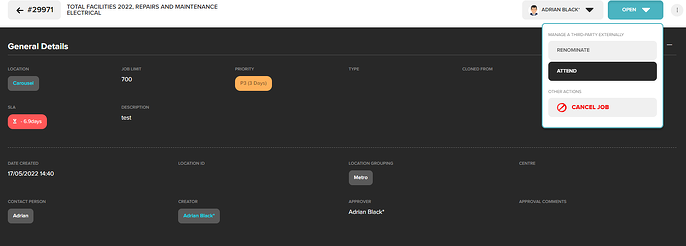
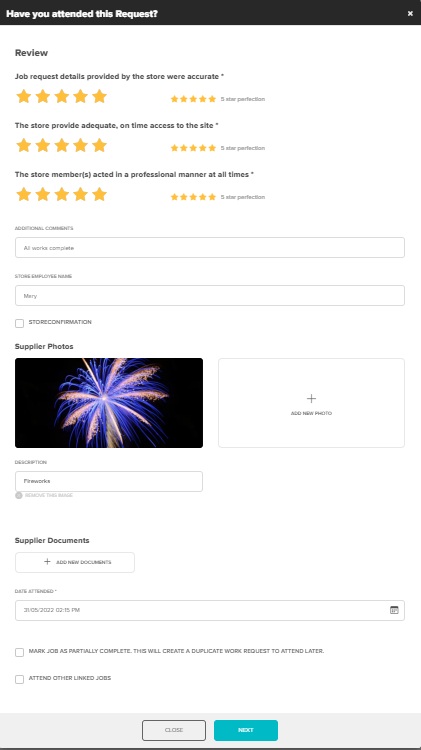
Rate the request using the stars (optional)
Add photos of completed works
Select the date and time the request was completed. Click Submit
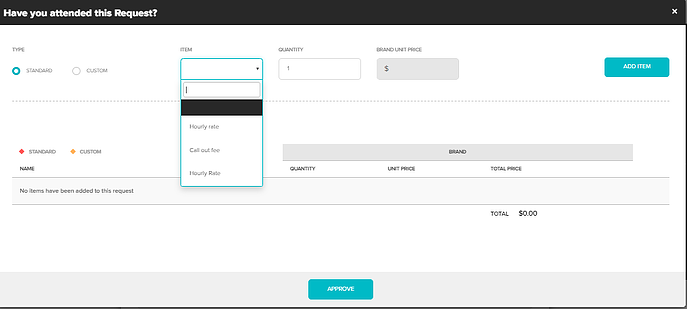
You will now be taken to the items screen.
This is where the supplier records all items used to complete this request. If you have the invoice you can complete this now. If not click submit.
To add items
- Standard items will be available to select from the drop box. Select the item, adjust the quantity if needed and click Add Item
- Repeat for the next item.
- To add an item that is not listed, click Custom. This will allow you free type
- Price is excluding GST
- Once all items are added click Submit
The status of this request will now be changed to Awaiting supplier review.
Was this article helpful?
That’s Great!
Thank you for your feedback
Sorry! We couldn't be helpful
Thank you for your feedback
Feedback sent
We appreciate your effort and will try to fix the article