Once a request has been approved, and you are happy that it has all the relevant information (detailed description, attendance time, pictures etc), it can be nominated to the appropriate supplier.
Locate the request using the request filters.
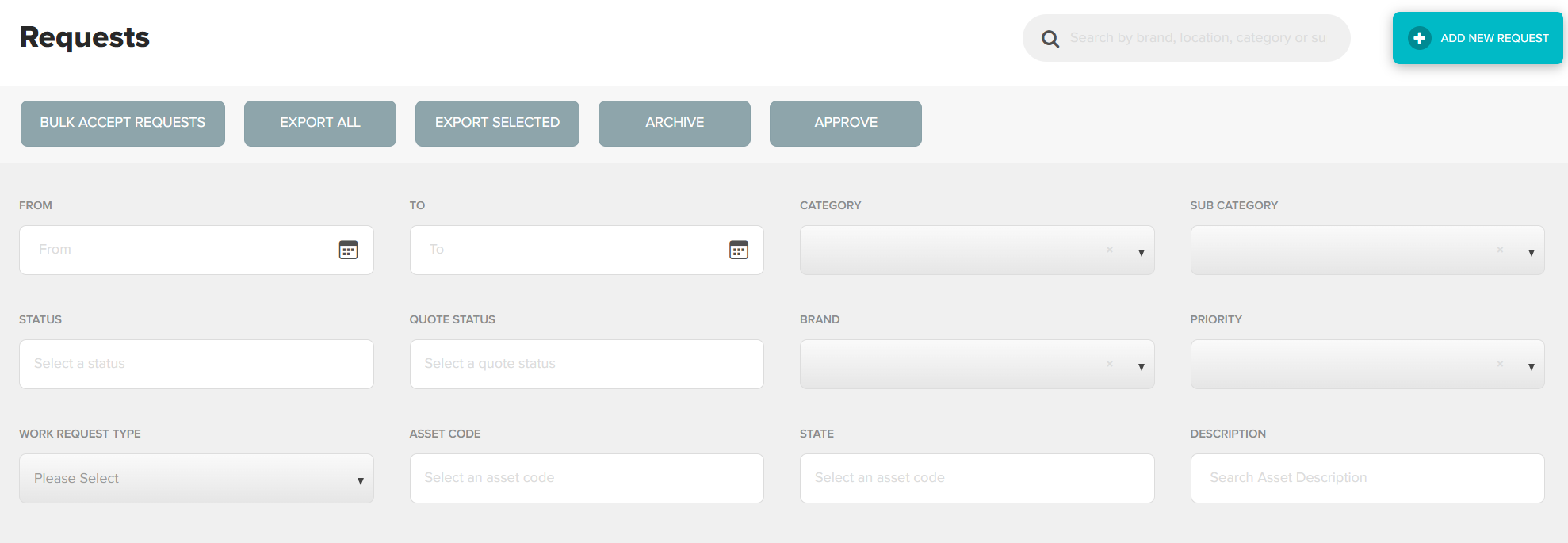
Once you have located the correct request, double click anywhere in the request to view in full.

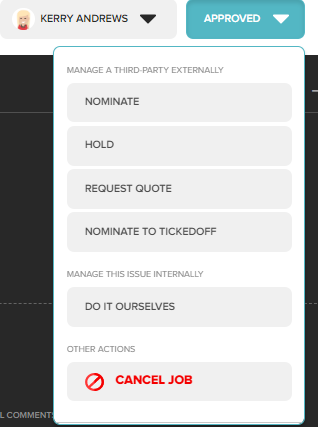
Using the action bar at the top right of the screen, select Nominate.
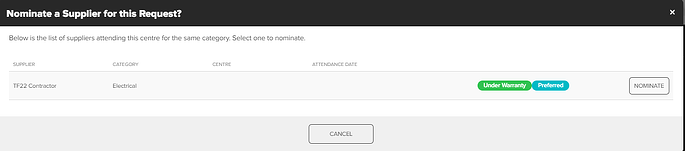
Only suppliers that have been configured to service the Location /subcategory of this request will be displayed. Select the supplier by clicking Nominate.
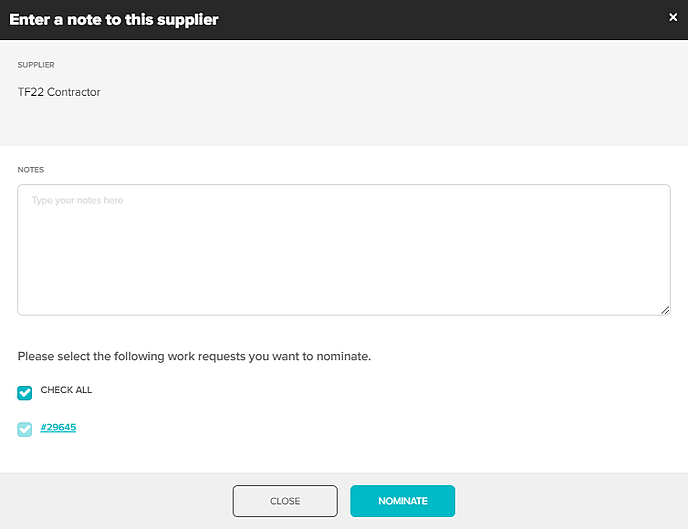
In the nomination notes box, type any additional information you want to pass on to the supplier, this can be a reminder about the priority, attendance times etc. Click Nominate to confirm.
The status of this request will now be changed to Awaiting Supplier.
The supplier will receive an email / push notification advising they have a new request, instructing them to accept/decline. You will receive email confirmation of the action they have taken.
Was this article helpful?
That’s Great!
Thank you for your feedback
Sorry! We couldn't be helpful
Thank you for your feedback
Feedback sent
We appreciate your effort and will try to fix the article