The supplier tab is where we save / manage all supplier details. Adding suppliers is a Super Admin function only.
In this tab you can view, edit, and archive all Suppliers. Clicking on view will open a new page and display further information regarding that supplier (contacts, address, phone numbers etc.). You will also see open and closed requests listed at the bottom of the page.
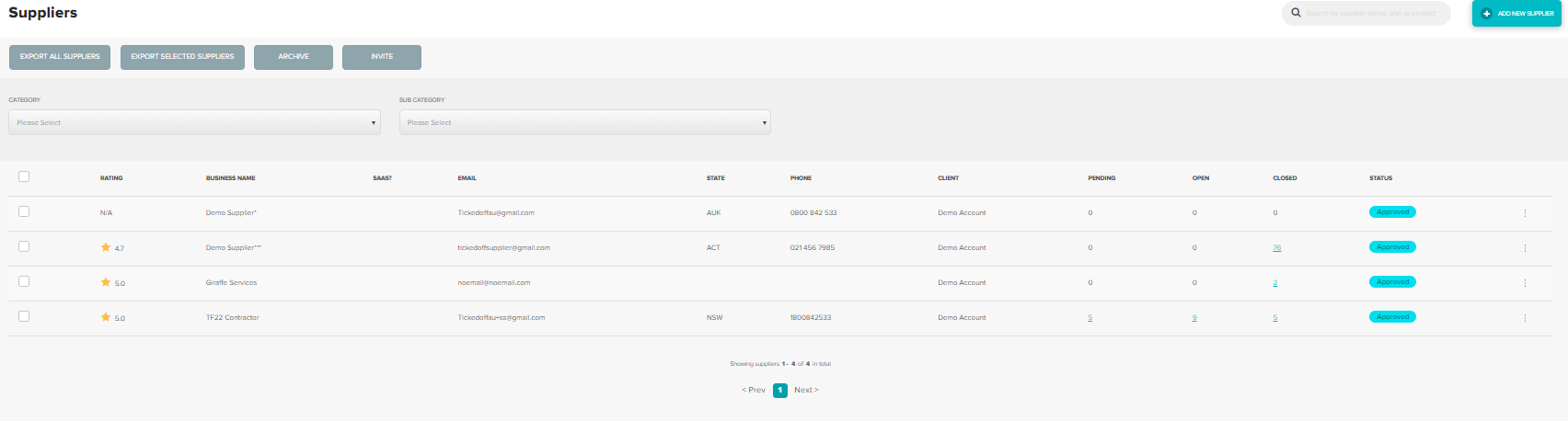
Adding Suppliers
Step One - Create the Supplier Profile.
From the supplier tab, click "Add New Supplier".

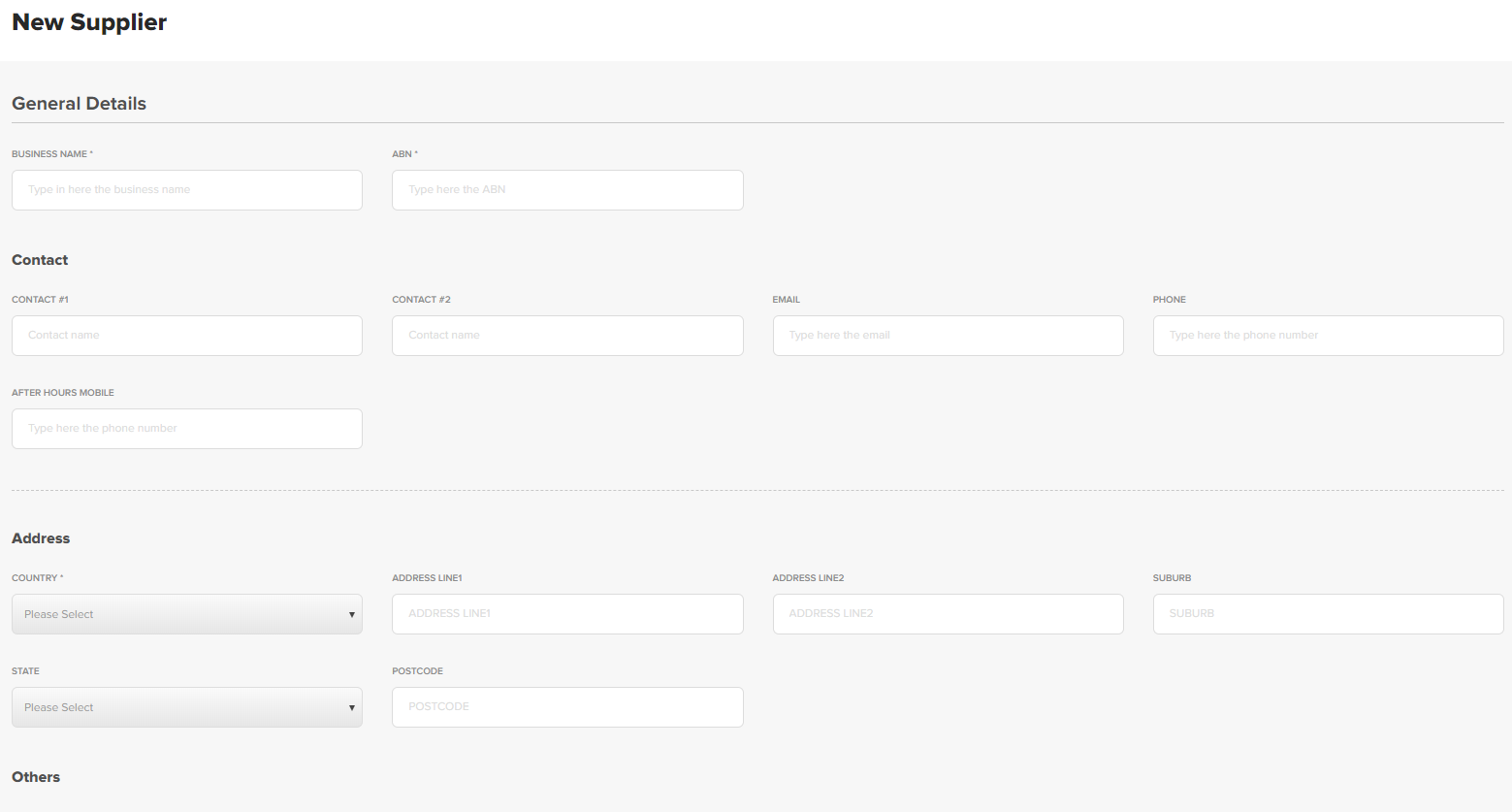
Complete form with all relevant information.
Contact Details (general contact information, not to be confused with user account details).
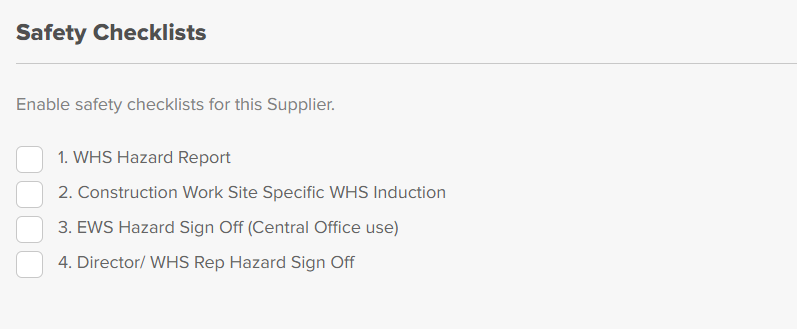
Safety Checklists
Suppliers can be given access to checklists. Select from the available options.
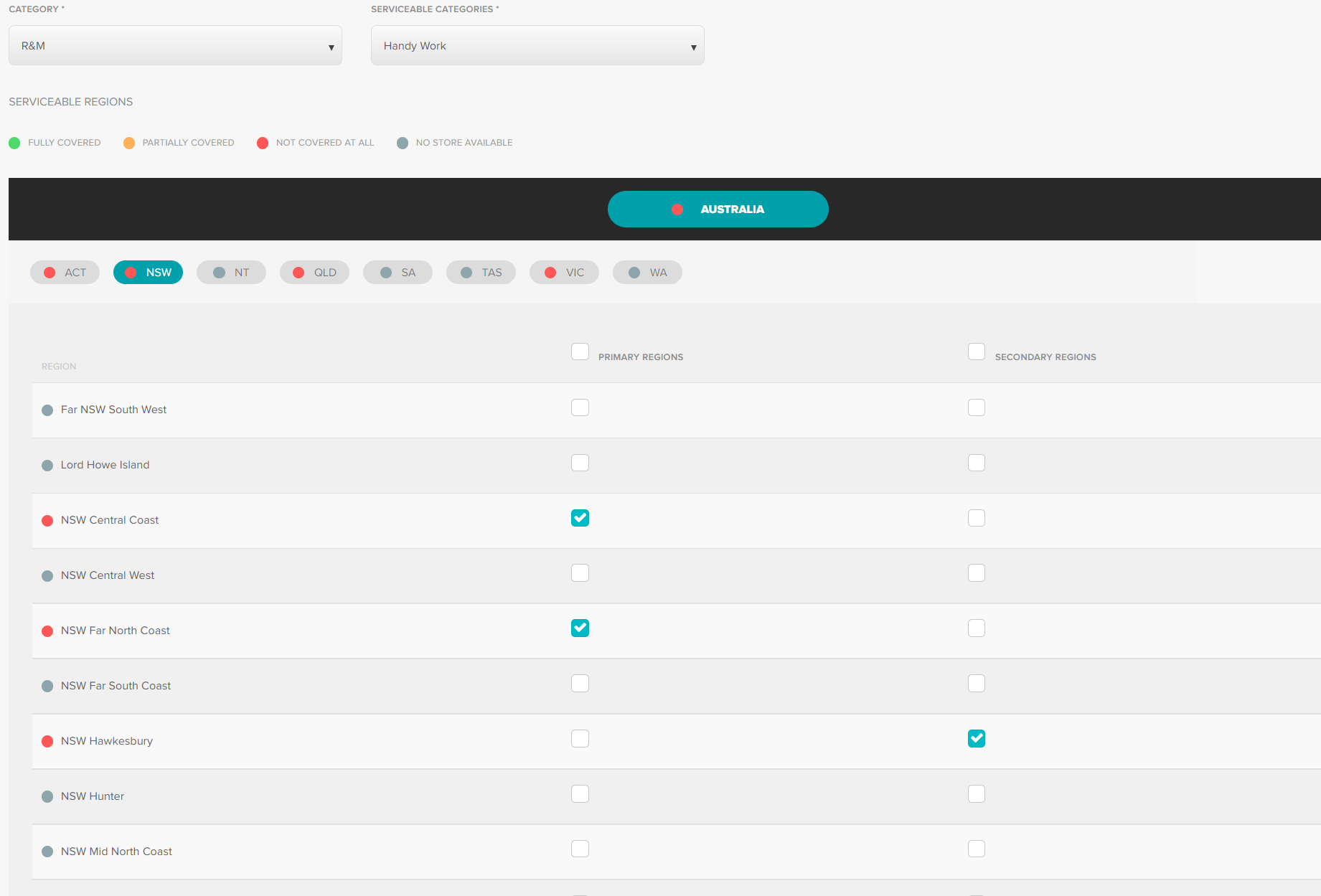
Categories / Regions
Suppliers can be set up to service multiple categories/sub-categories.
Only suppliers that have been set up to service a request category will be available to select at nomination.
Regions will also need to be selected. This will ensure that the correct suppliers are attending each site.
Per region we need to assign them as either Primary or Secondary Supplier.
Primary Suppliers are our go-to and will be labelled primary at point of nomination.
Secondary will still display at point of nomination but not be labelled.
If a region is left unticked the supplier will not be available to nominate requests to for any location in that region.
Certificates
Any required insurances/certificates can be saved against a supplier and set to remind them when updated versions are due to be provided.
Click Add New Certificate and enter required information.

Due date impact flow relates to the ability to nominate requests to a supplier if their insurances have expired. Selecting yes will restrict nomination (recommended).
Click Create Supplier to save supplier profile.
Step two - User Accounts.
Once the Supplier Profile has been created you can add users. From the profile click "add user to supplier" (top right).

Enter required user info.
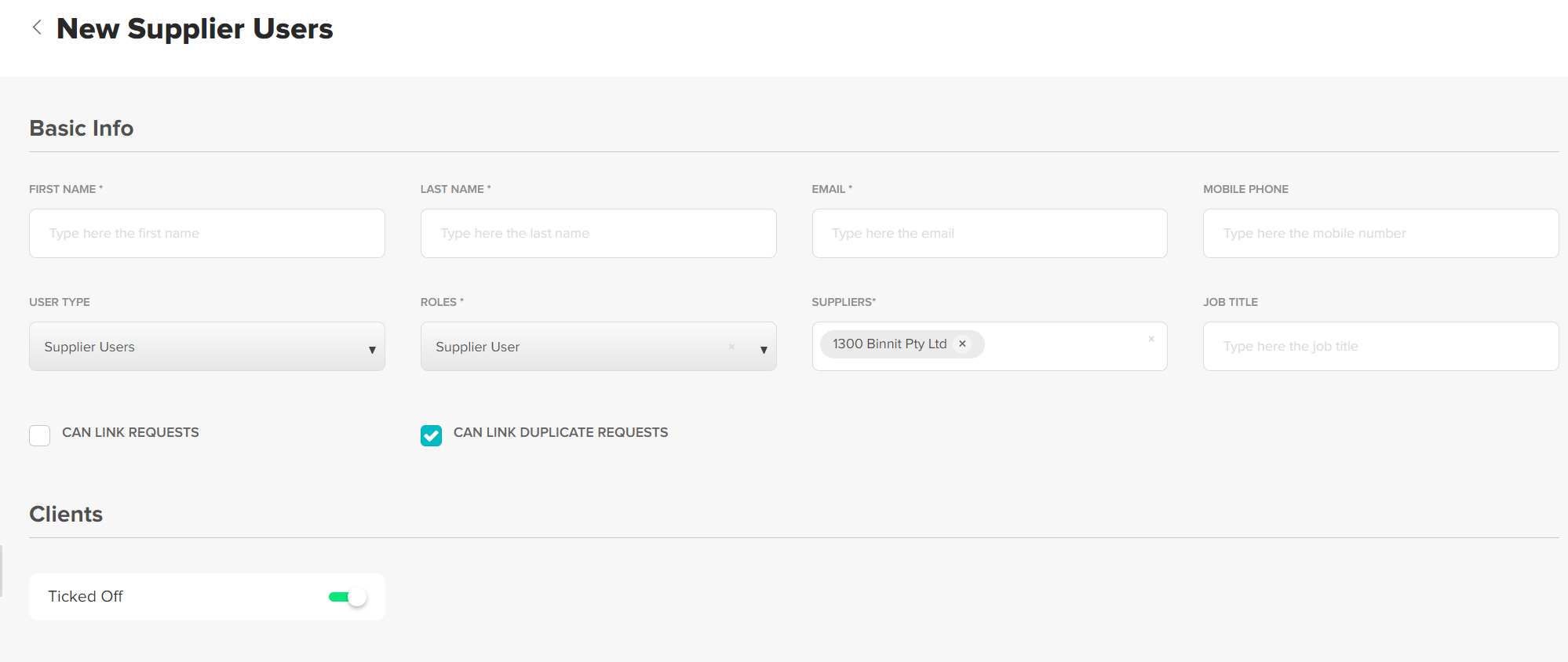
Ensure Can Link Duplicate Requests and Client is selected.
There are two different user types for suppliers. Each supplier must have at least one Supplier Admin user.
- Supplier Admin - Can accept / schedule requests and complete the supplier review. Has visibility over all requests nominated to their business.
- Supplier User - Can be delegated a request by a supplier Admin. Will only see requests that have been delegated to them.
Once you have added the user they will receive an account confirmation email, this will allow them to create a password. Their username will be their email address. They use the same details to log into both web platform and mobile app.
Was this article helpful?
That’s Great!
Thank you for your feedback
Sorry! We couldn't be helpful
Thank you for your feedback
Feedback sent
We appreciate your effort and will try to fix the article