As a Super Admin user you have the ability to action Work Requests for any Brand / Location. Actions include
- Approve
- Nominate
- Reject
- Delegate
- Request Quote(s)
- Renominate
- Cancel
Approve
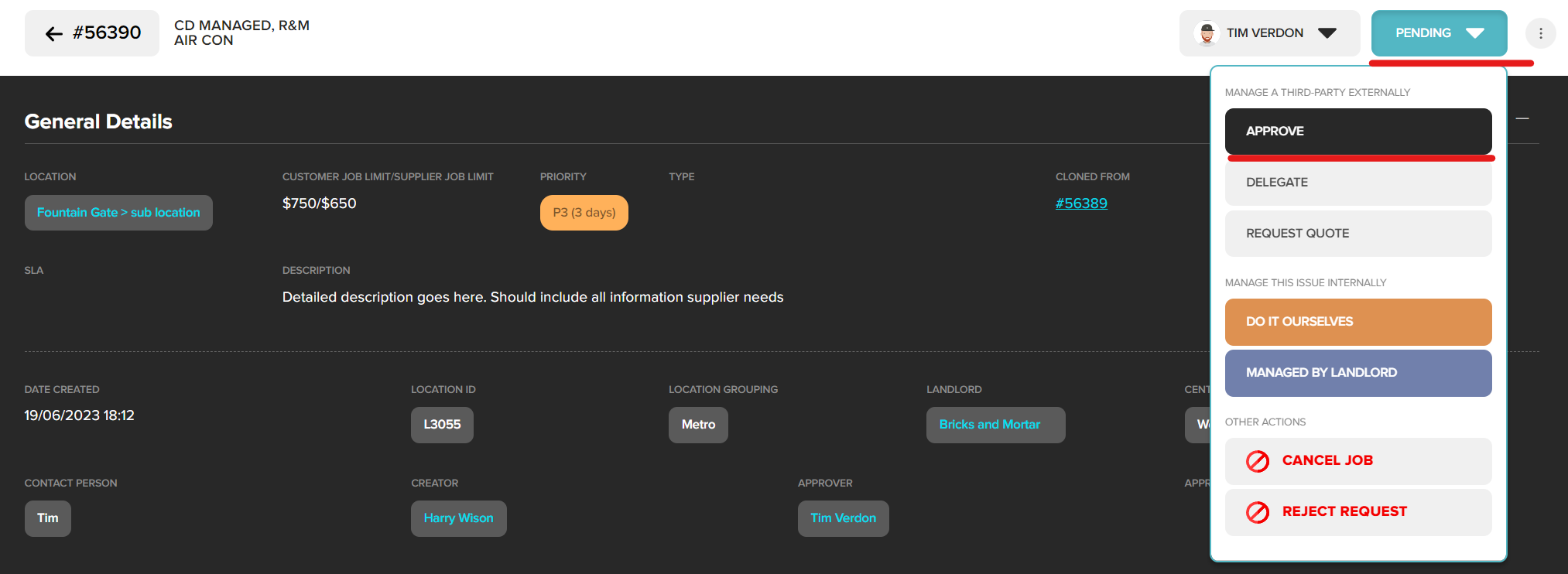
After reviewing the information provided and confirming it is detailed enough for the supplier to action in full (detailed description, photos included, asset added if applicable etc), click Approve from the action bar.
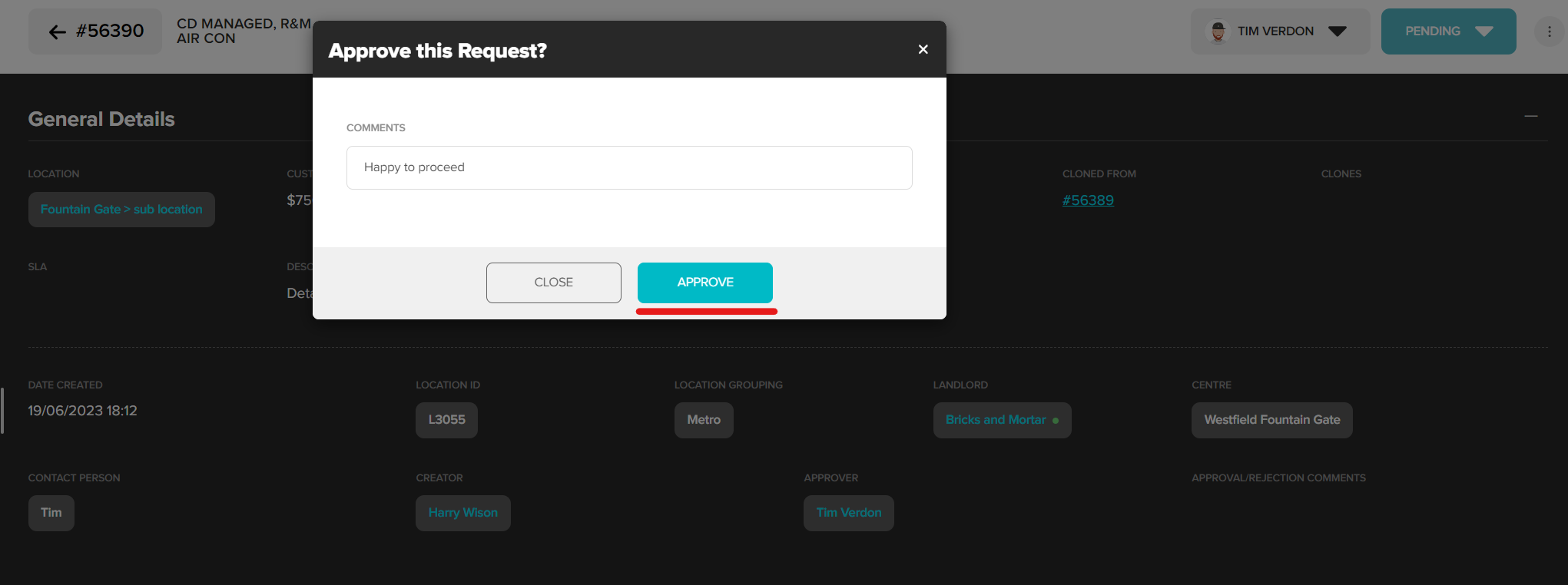
Enter an approval comment. Click Approve. Approval comment will be saved against request and included in email notification.
Users with access to request will be updated via email / push notification. Request is now sitting in the Approved status ready for nomination.
Nominate
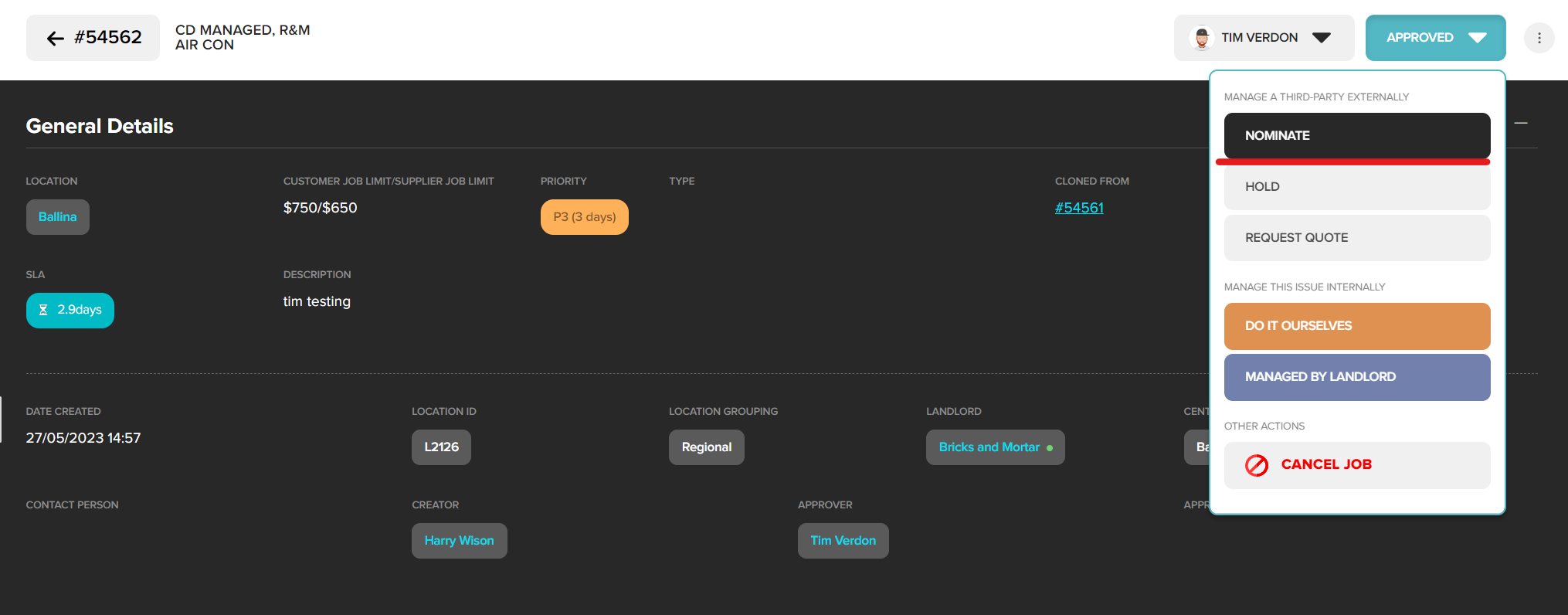
To nominate a request to a supplier, click Nominate from the action button
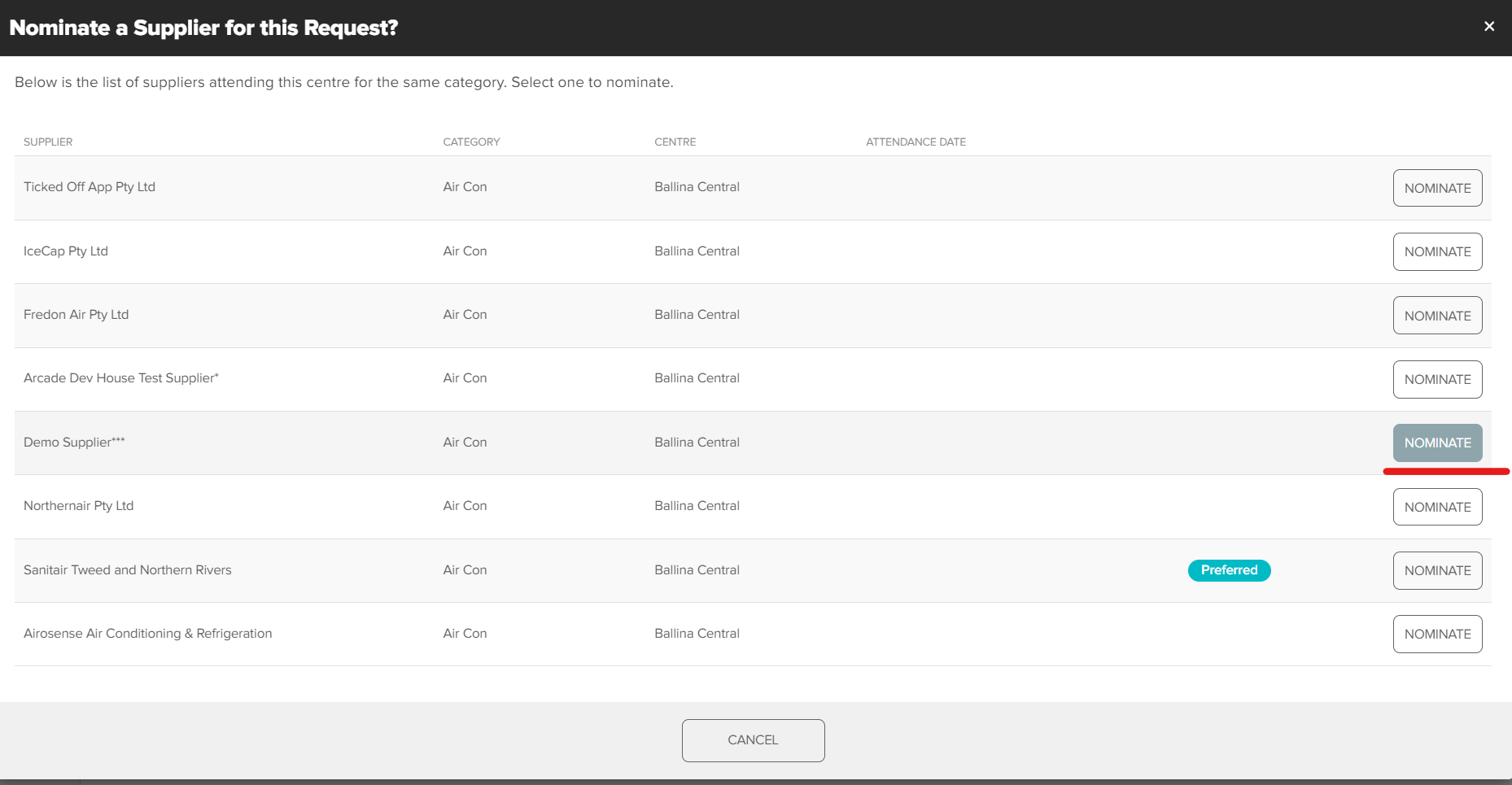
Suppliers who have been configured to service this Location / Subcategory will be listed. Click Nominate to select
Enter a nomination comment, click Nominate. Nomination comment will be saved against request and included in email notification.
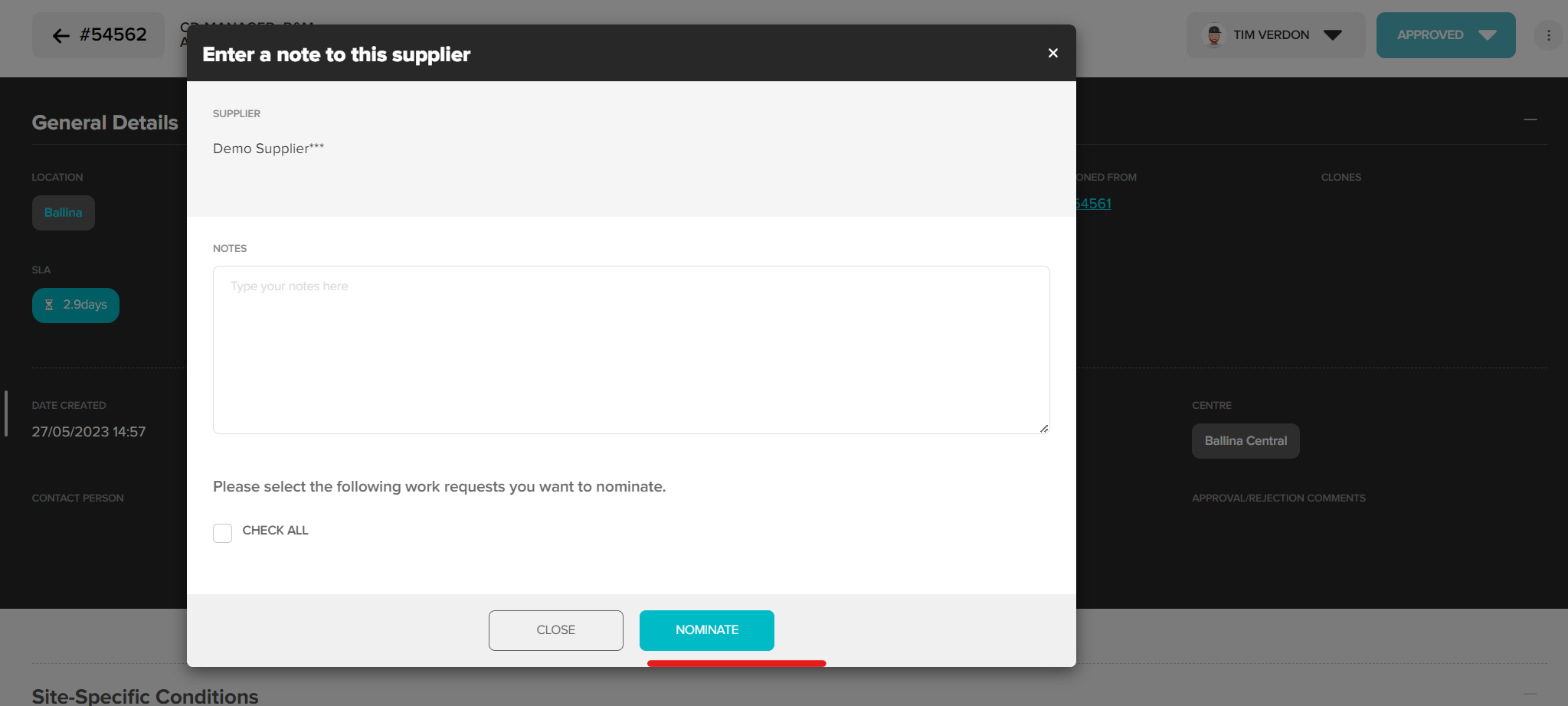
Supplier will be notified via email / push notification. Request is now sitting in the Awaiting Supplier status.
Review previous requests for this site
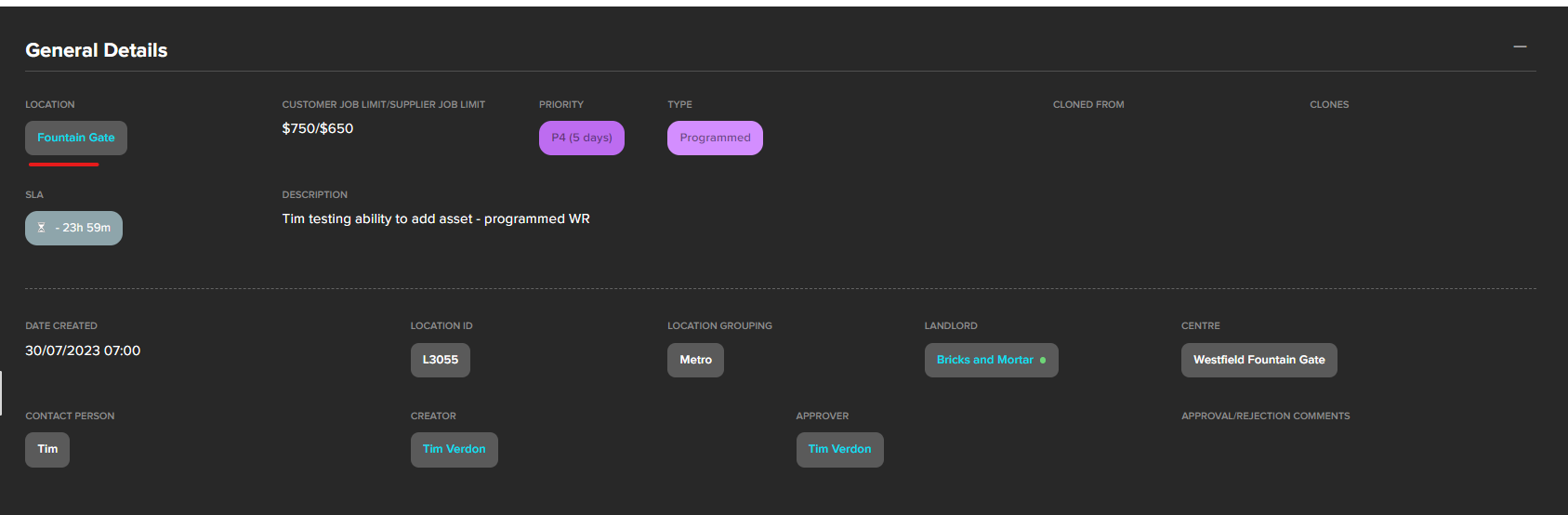
To view open and closed requests for this site. Click the store name Hyperlink in the General Details section of the request
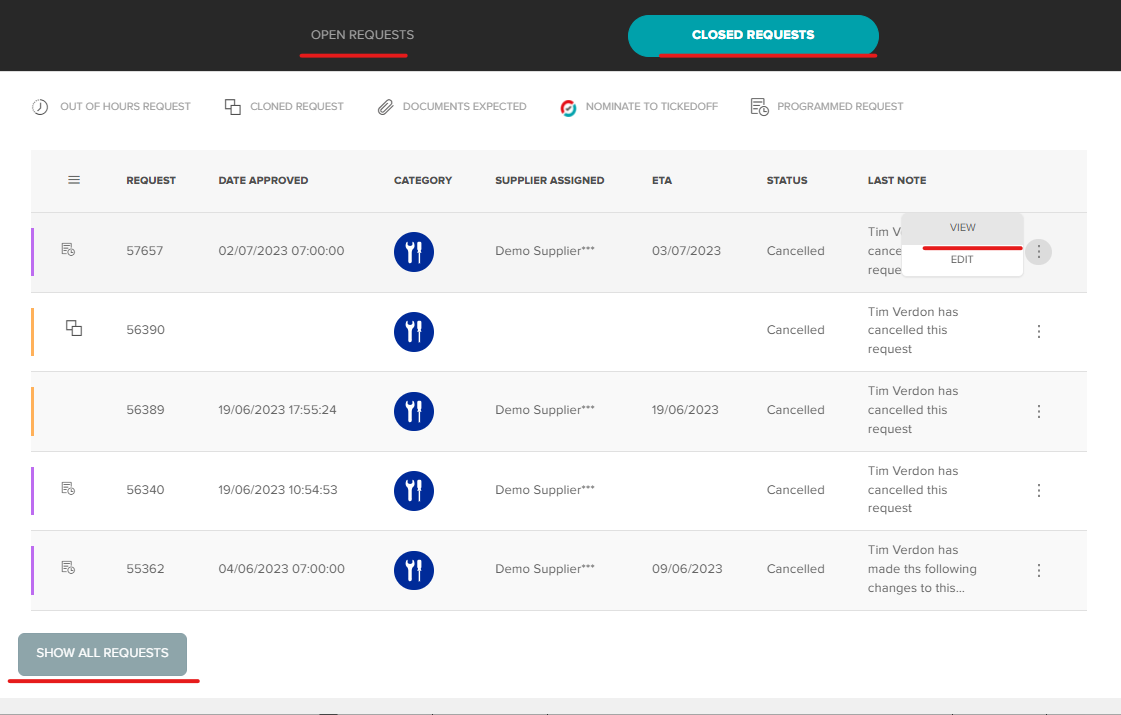
At the bottom of the pop uip you will see open and closed requests listed. Hover over the three dots to the right to open a request. Or click through to the WR list pager via button in the bottom left.
Reject
If a request is not required or incomplete you can reject it. Via the rejection comment you can provide a reason or ask user to provide additional information.
From the action button, click Reject
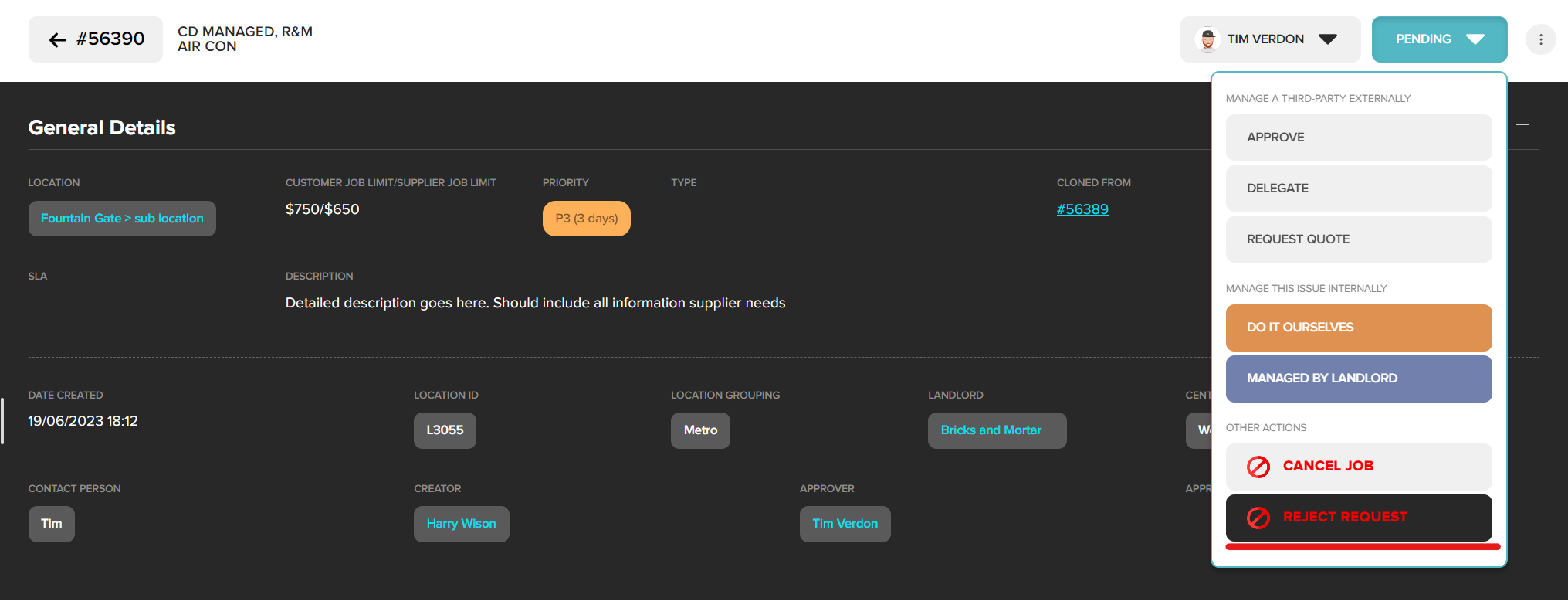
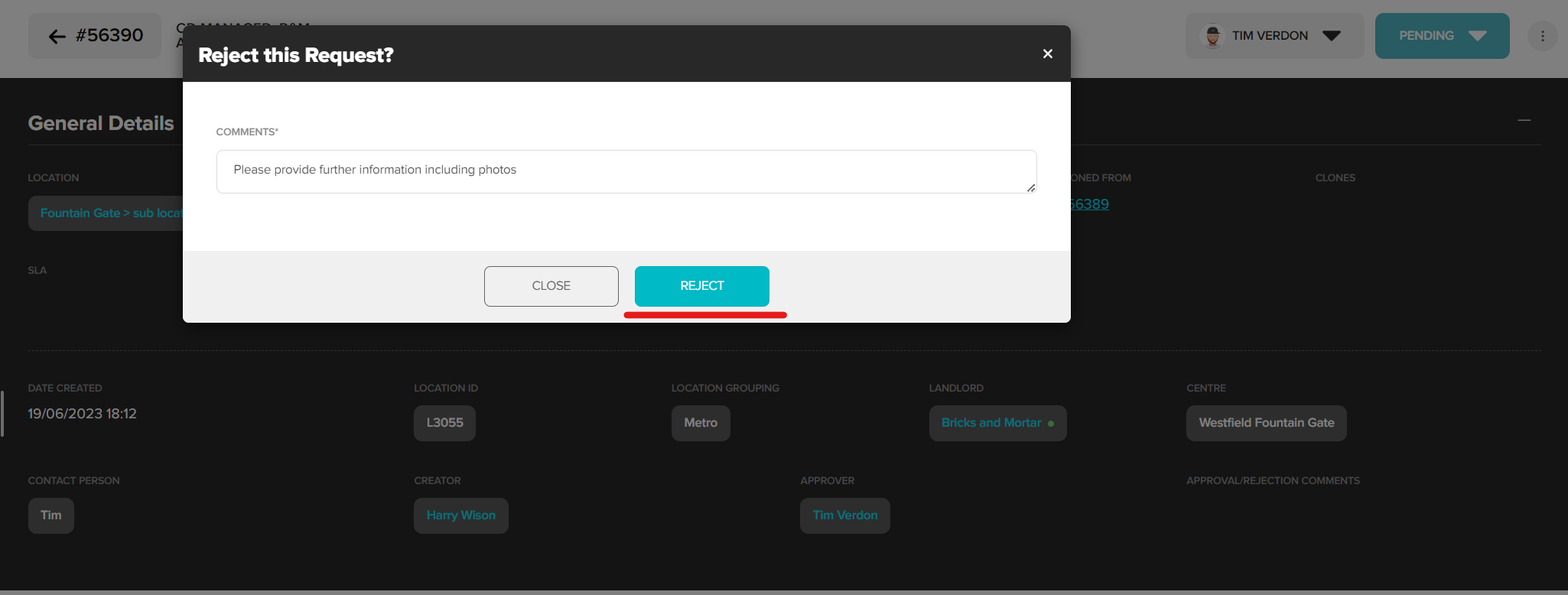
Enter a rejection comment and click Reject. Rejection comment will be saved against request and included in email notification.
Delegate
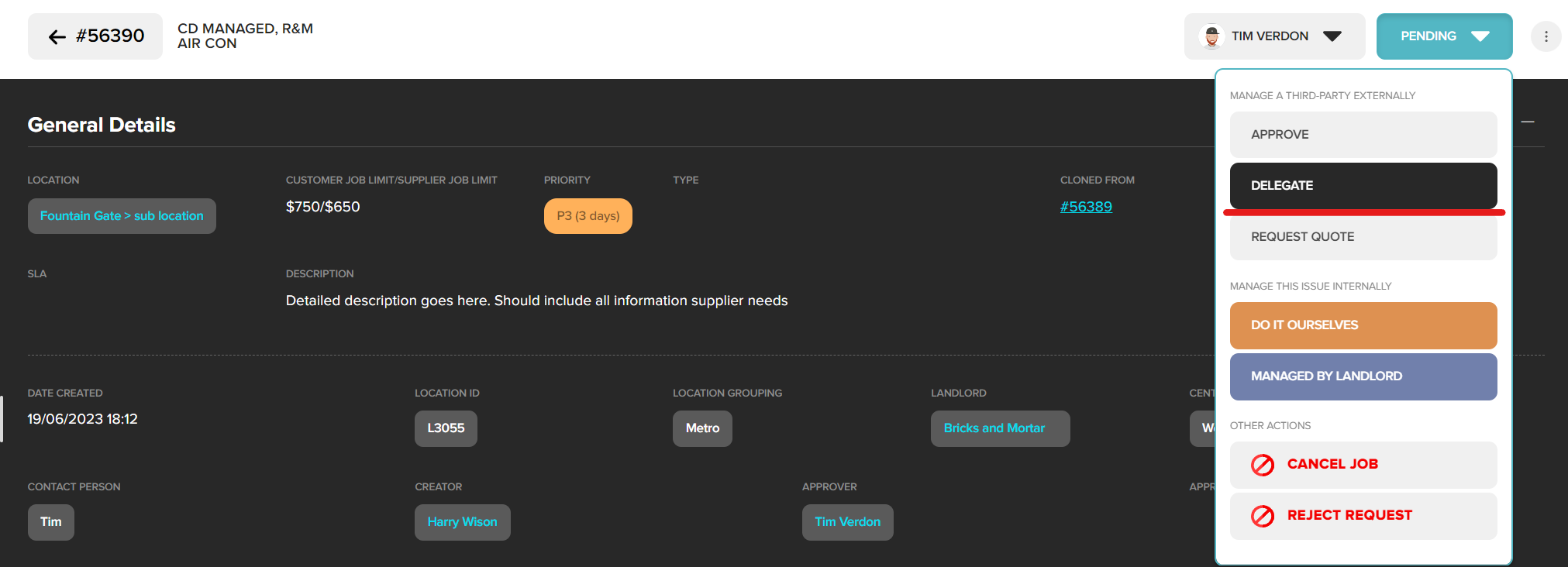
To delegate a request to a colleague for approval, click Delegate from the action button
Select user from the dropdown options and enter a delegation note. Click Delegate to confirm
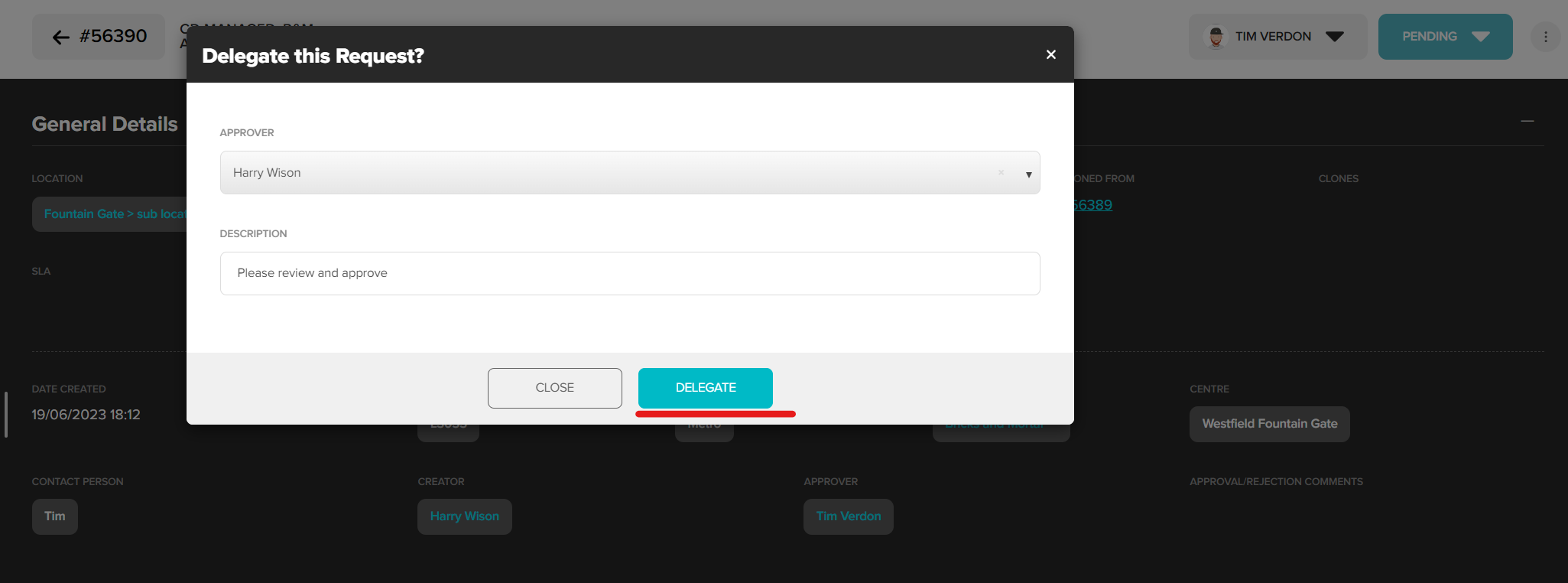
Users will be updated via email / push notification that their approval is required.
Was this article helpful?
That’s Great!
Thank you for your feedback
Sorry! We couldn't be helpful
Thank you for your feedback
Feedback sent
We appreciate your effort and will try to fix the article