This guide provides step-by-step instructions on how to create an Ad Hoc Master Batch Request in Ticked Off. It is useful for individuals who need to efficiently manage and organize multiple requests in one batch, saving time and streamlining the process.
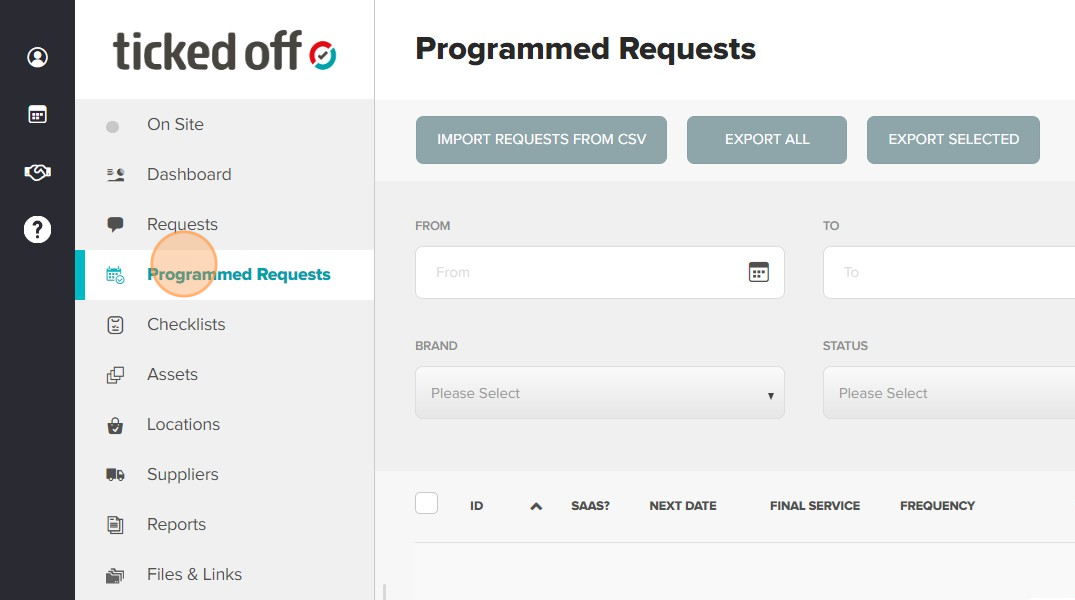
1. Click "Programmed Requests" in the main menu
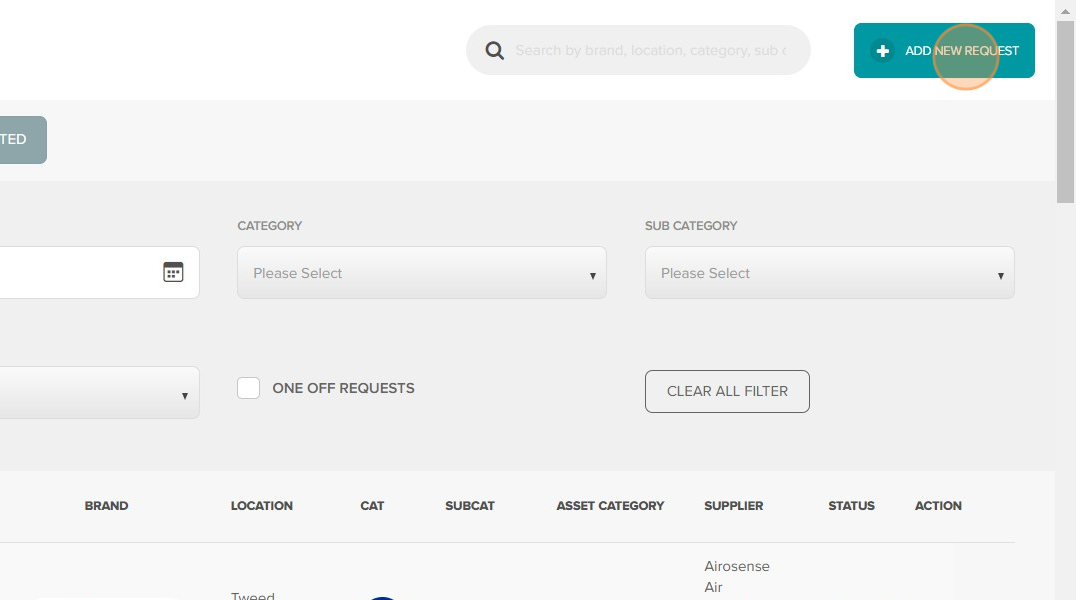
2. Click "Add new request" in the top right hand corner of the screen
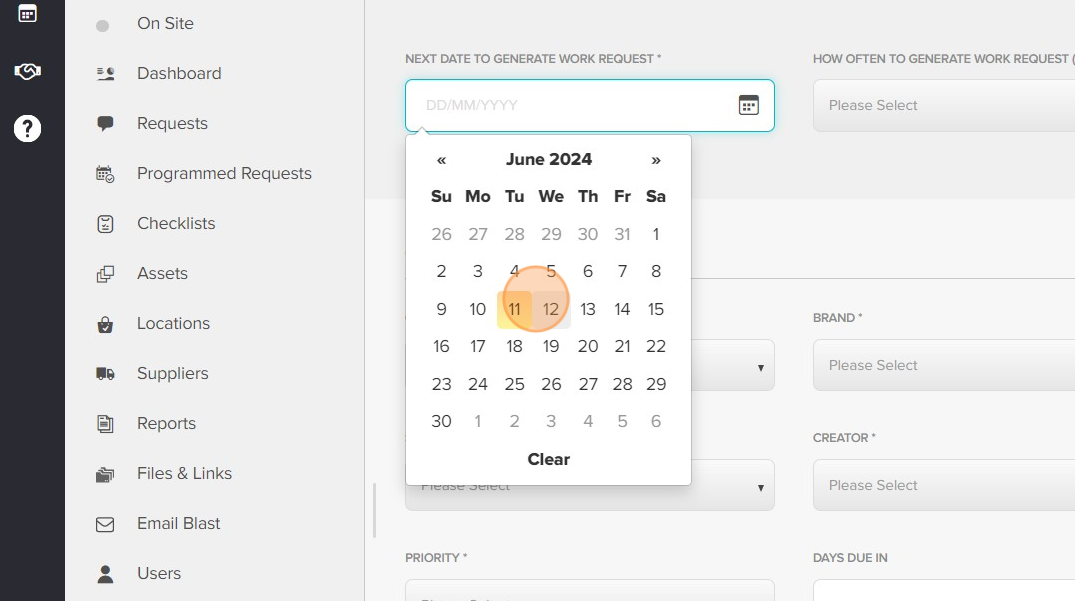
3. In the date field, select todays date
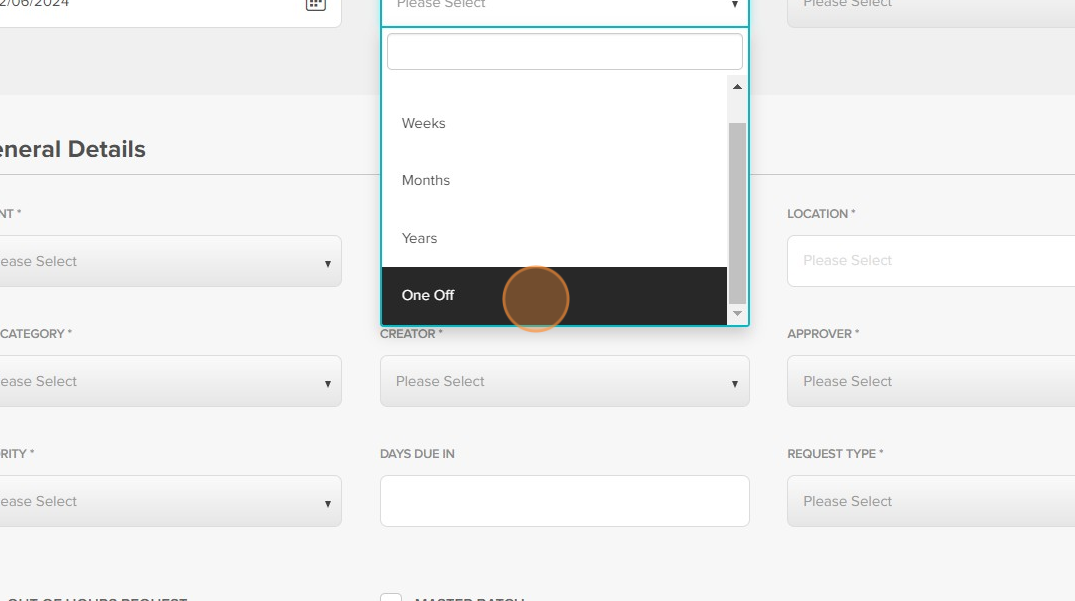
4. In the frequency field select One Off
5. Fill in the general details by selecting the relevant option from the dropdown fields. Leave the description field empty. Priority will always be P5.
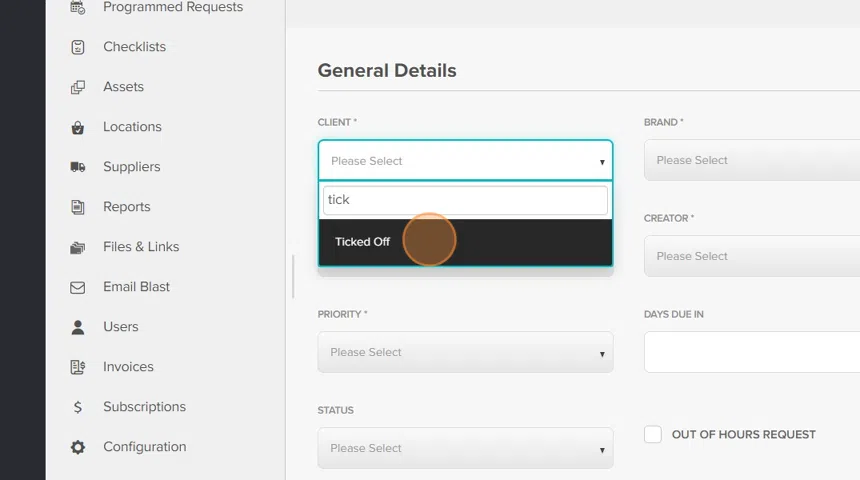
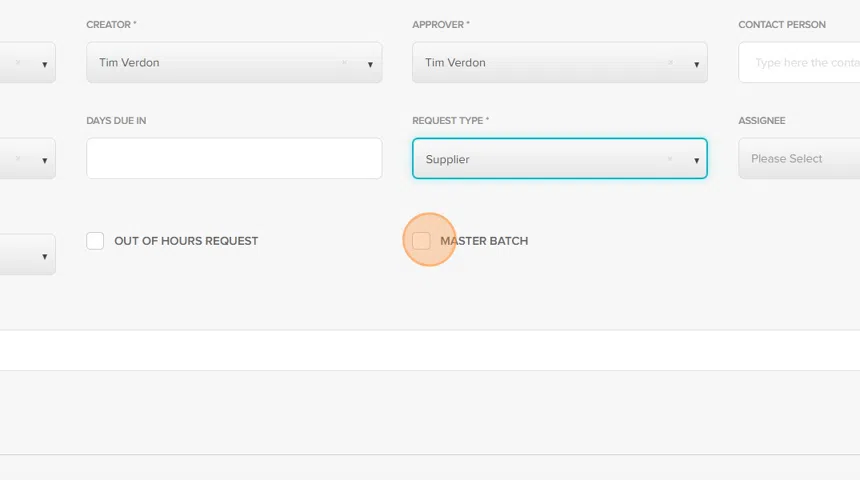
6. Ensure the Master Bath tick box is selected and click submit request.
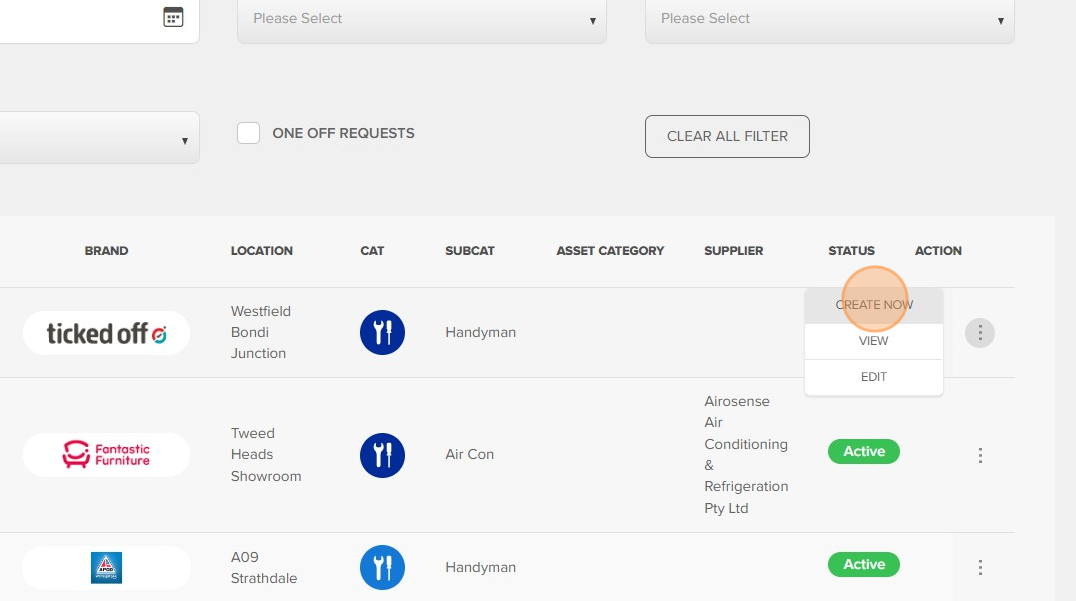
7. From the Programmed Request list view, click create now. This will generate the Master Batch request. You can locate this via the Work Request tab.
Adding Work Requests to a Master Batch
8. Via the WR list view, locate the Master Batch request. Double clicking will open the Master Batch request. Ensure Master Batch has been approved.
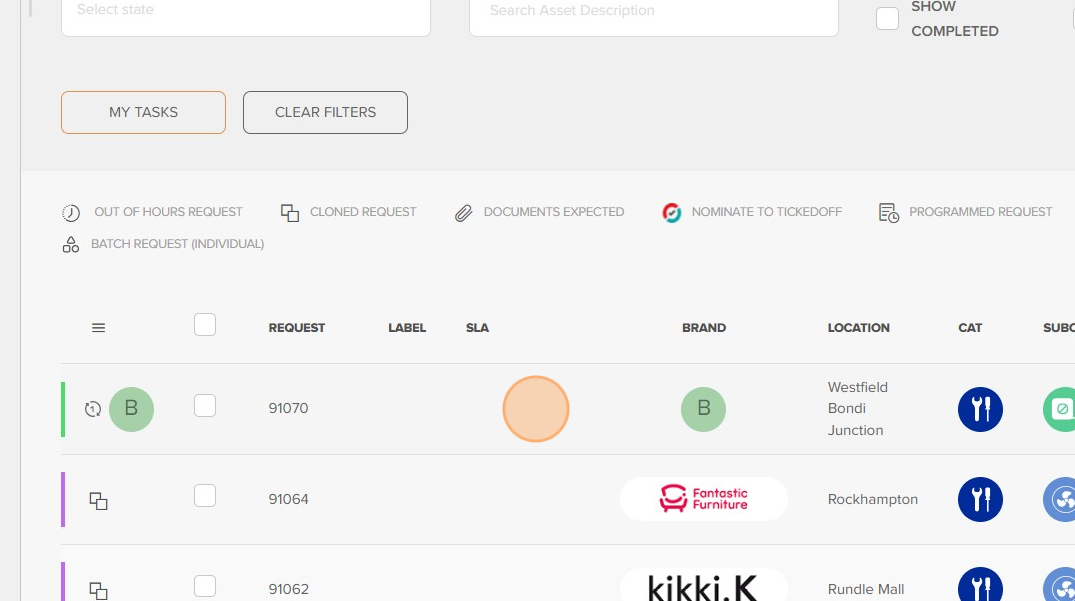
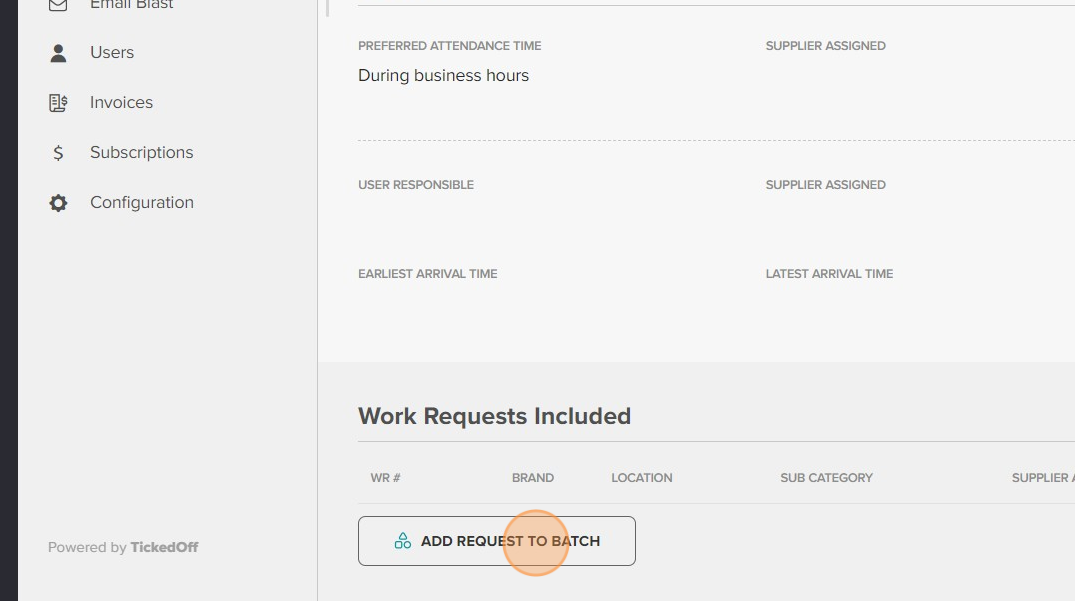
9. Click the "add new request to batch" button
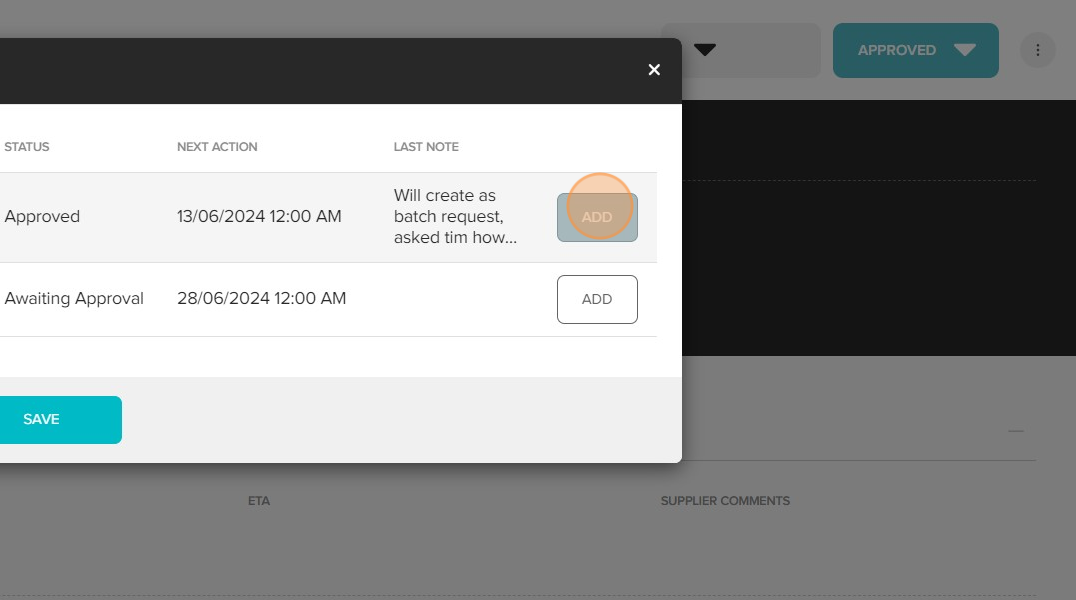
10. Select the applicable requests using the "add" button to the right.
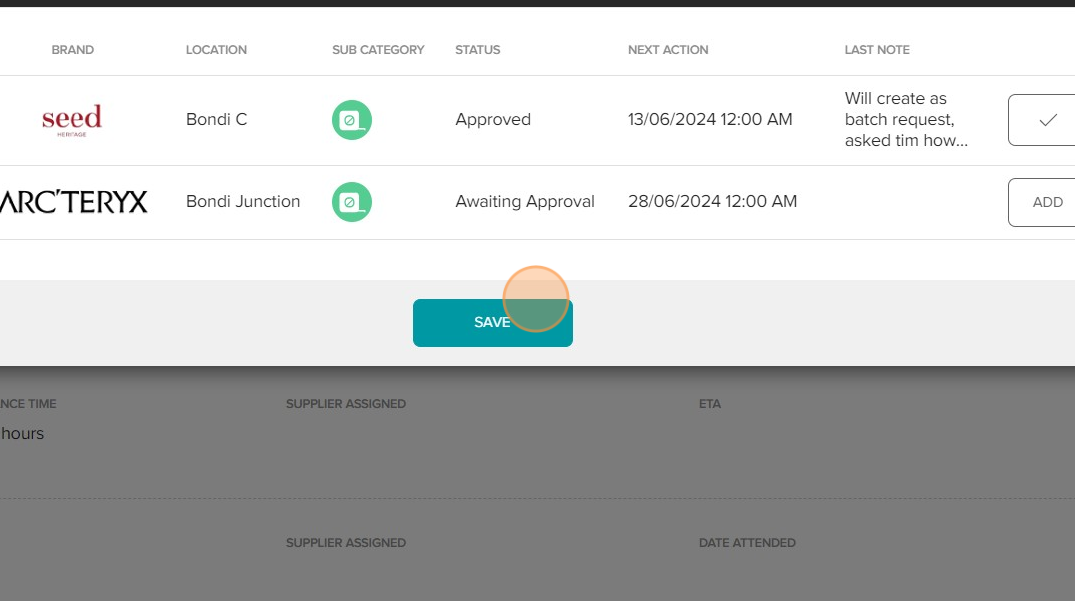
11. Click "Save" to confirm
Was this article helpful?
That’s Great!
Thank you for your feedback
Sorry! We couldn't be helpful
Thank you for your feedback
Feedback sent
We appreciate your effort and will try to fix the article