Single Location Users
Users who only require access to one location. Location users have the ability to raise / view requests but not Approve. Their Approval level should be set to 0.
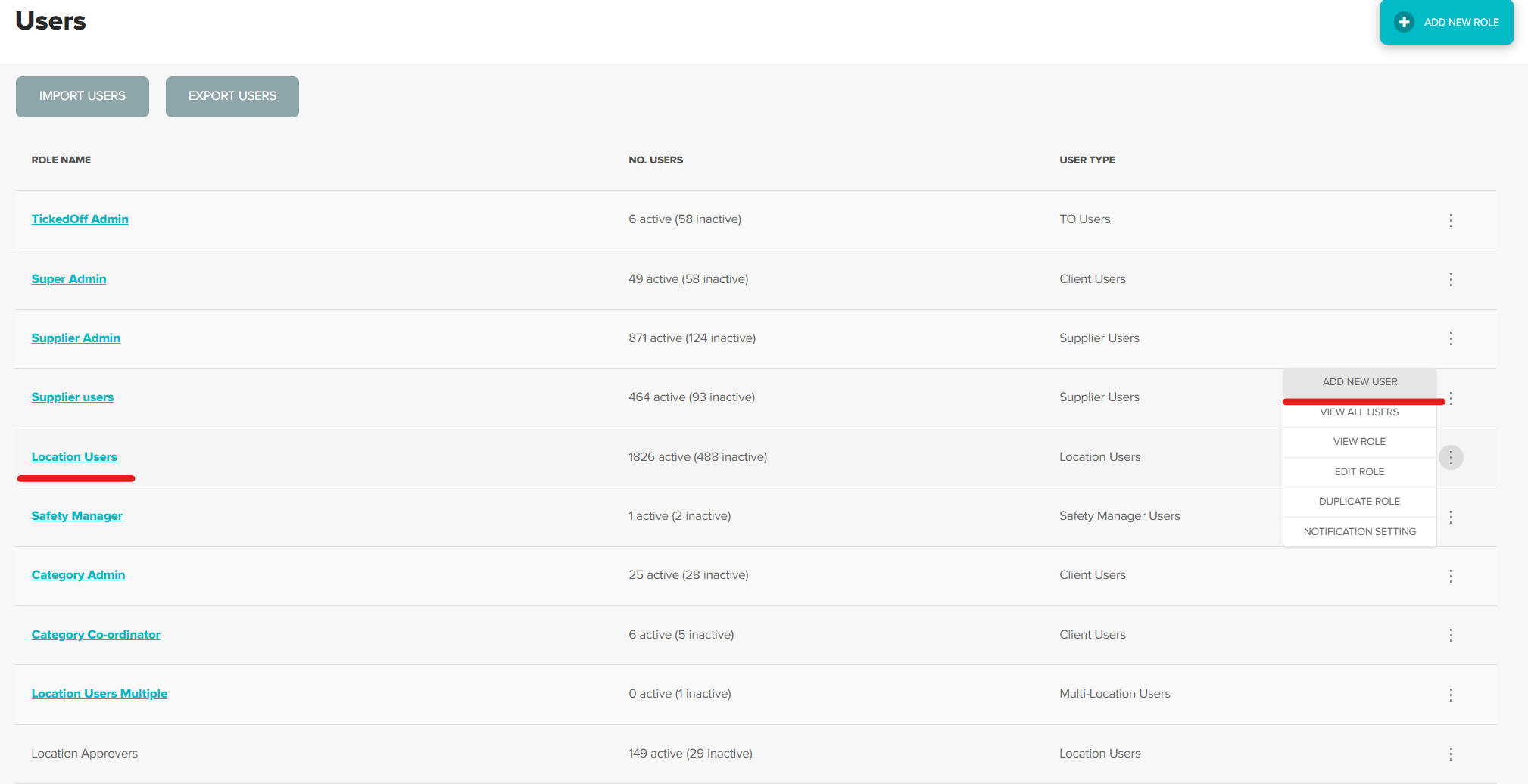
From the Users tab, hover over the 3 dots to the right of Locations users. Click Add New User
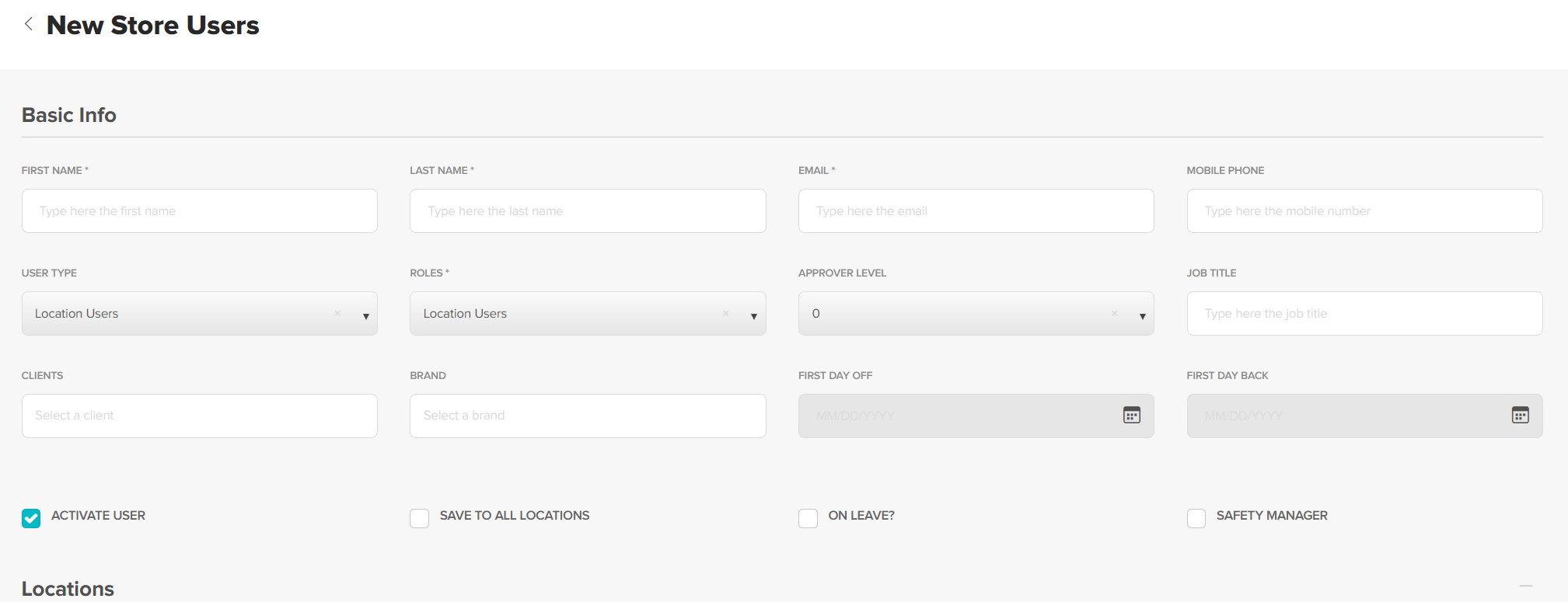
Complete all fields listed under Basic Info
- First Name
- Last Name
- Email address
- Mobile Number
- Job Title
- Set approval level to 0
Select Client and Brand. Once brand has been entered Locations will populate below.
Toggle On to provide access.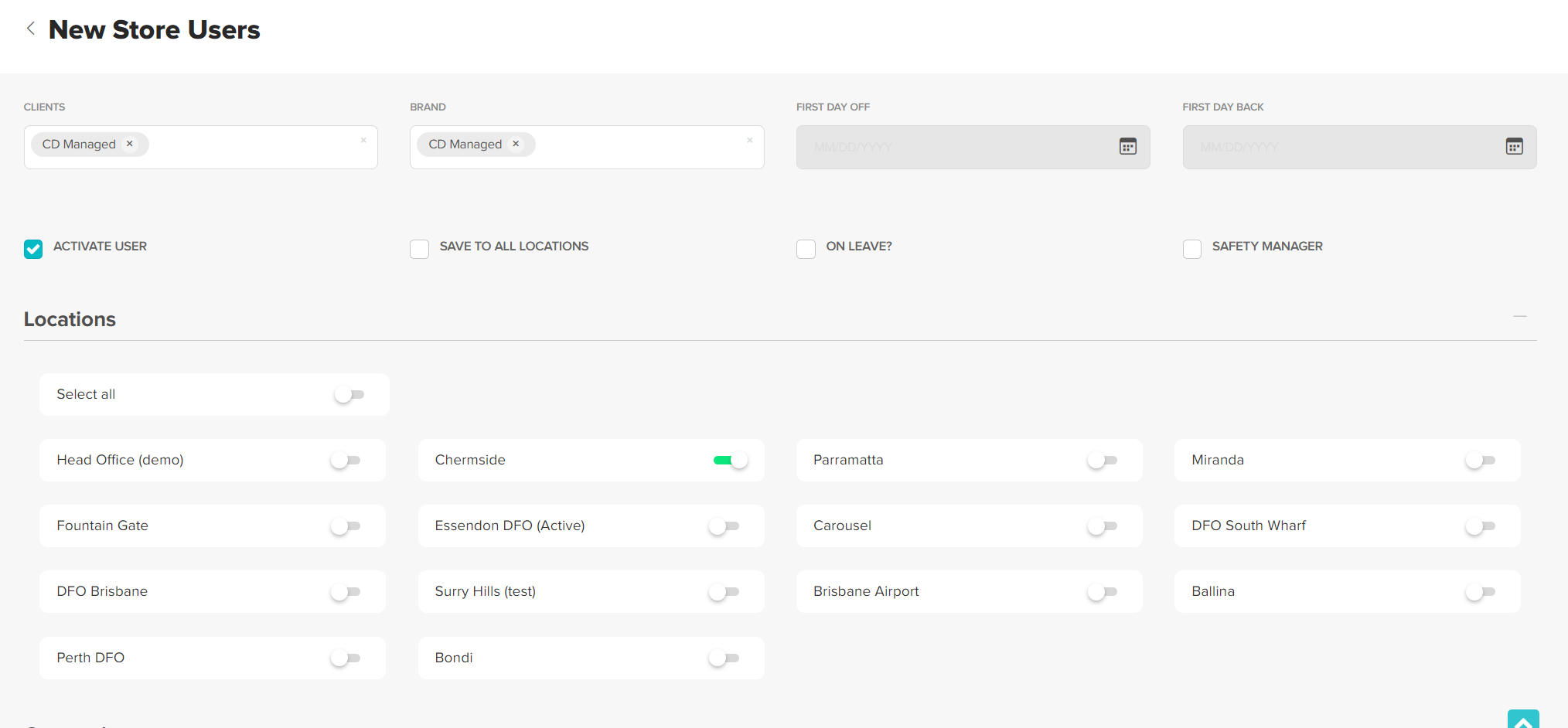
Select the Categories user can access. Users can only view / create requests for categories they have been given access to. Users may have access to multiple categories. Toggle On to provide access.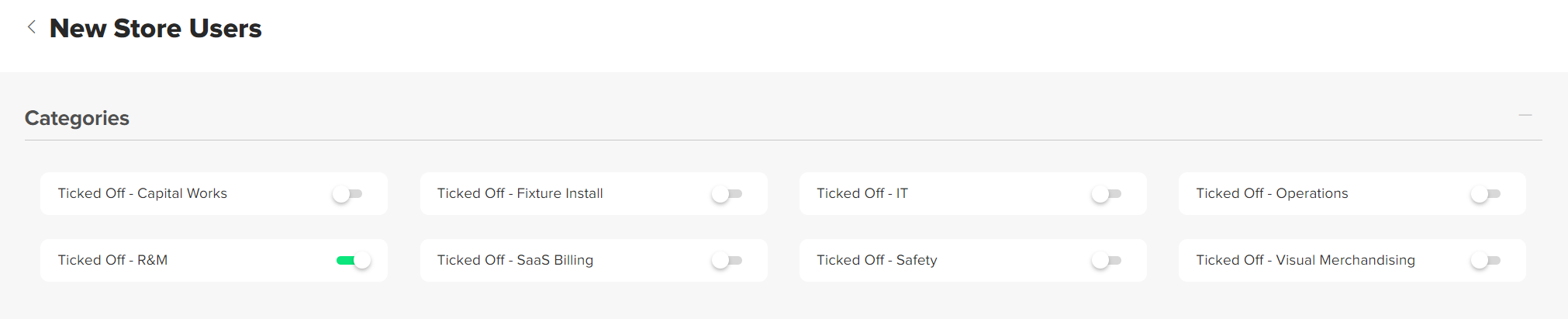
Notification Settings. Default notifications for this user type are preselected. Leaving these as is will ensure user is kept updated on request progress.
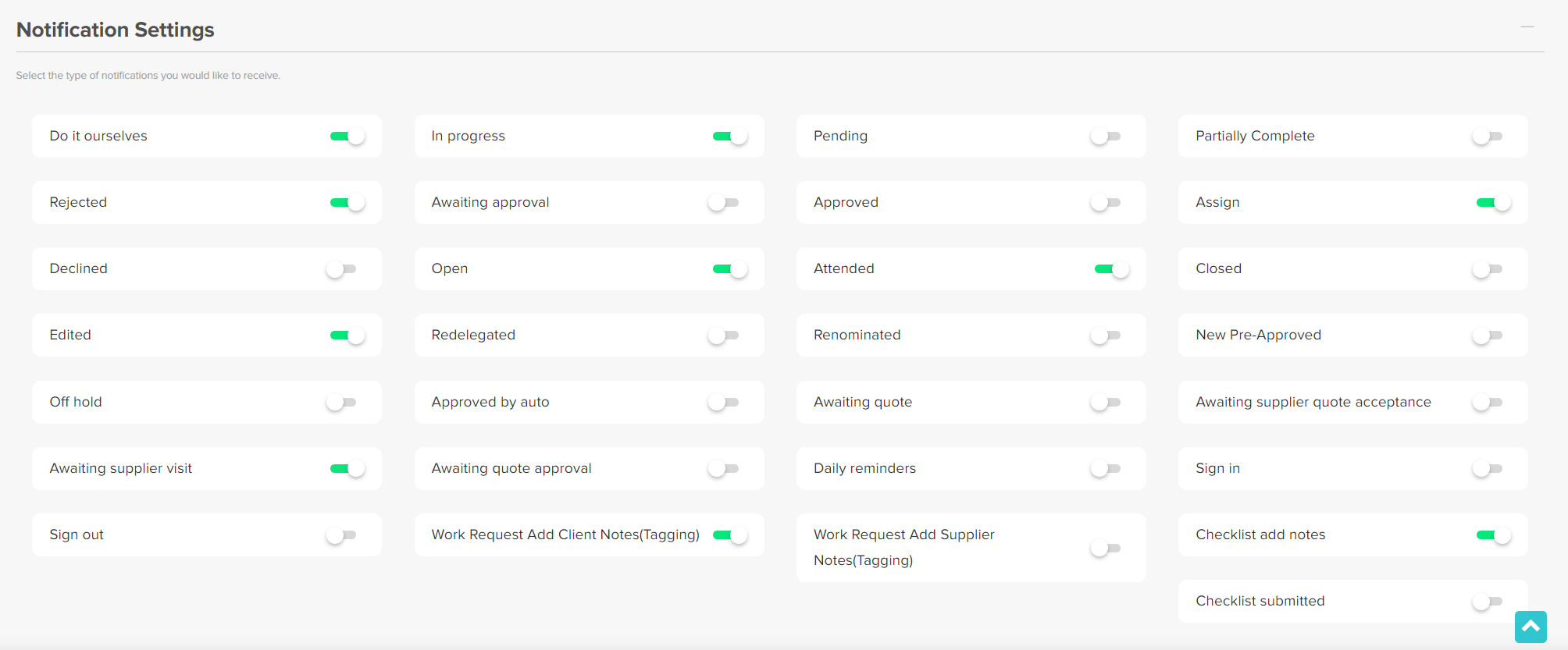
Click Create (bottom of the page) to confirm creation.

User will receive email asking them to confirm their account. Confirmation link has a 2 hour expiry. To resend a fresh email use the link below.
https://tickedoffapp.net/confirmation.html
Multi Location Users
Users who require access to multiple Locations / Brands. This user type is generally an area / cluster manager and often has the ability to approve requests (see Approvers below).
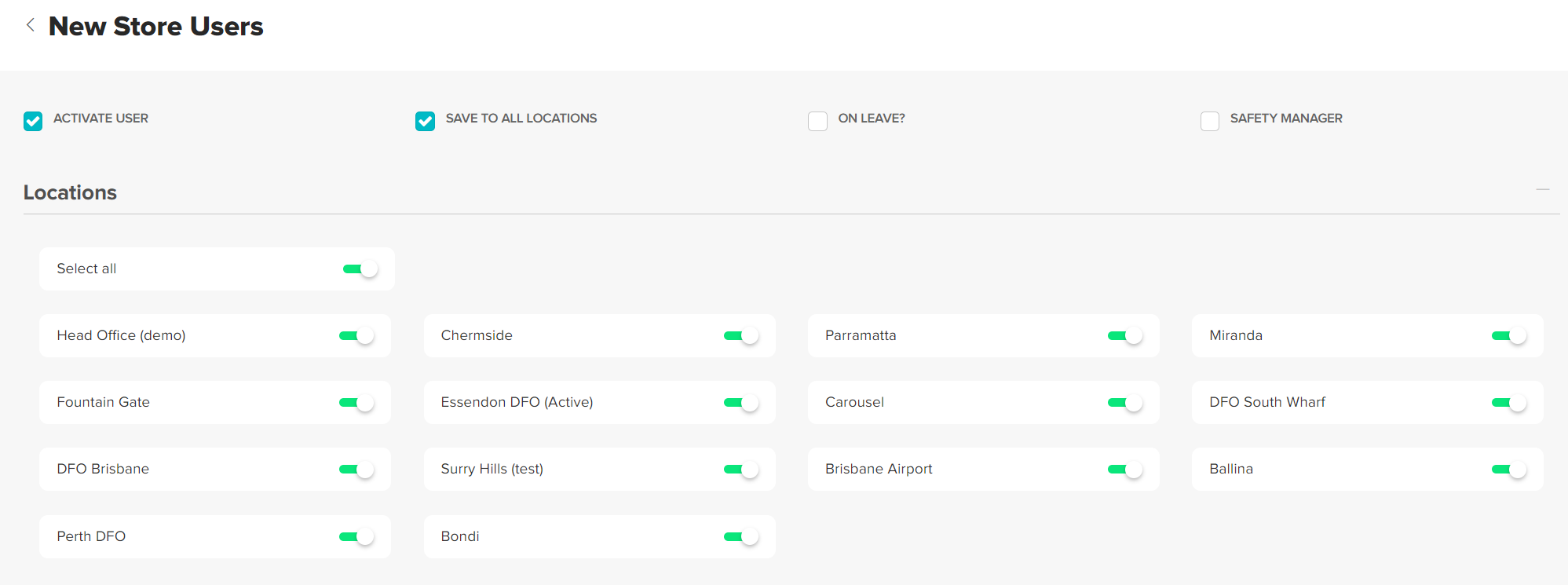
To provide access to Multiple Locations use the toggles. If user needs access to all Locations select save to all locations. This will ensure they are automatically added to any new locations created.
Approvers
Approvers have the ability to approve requests for Locations they have access to. This includes requests raised by other users. Request raised by an Approver will be generated in the Approved status.
Set the users role to Location Approver and set Approval Level to 2.
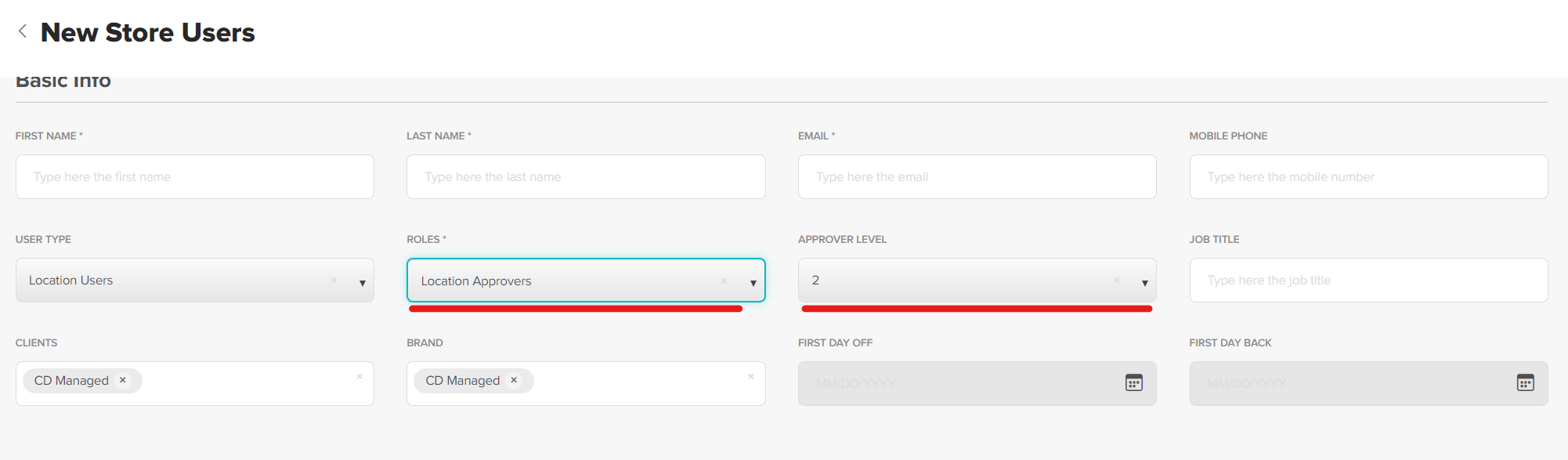
The users approval level must be equal to or higher than the Approval level of the category of the request being raised.
Was this article helpful?
That’s Great!
Thank you for your feedback
Sorry! We couldn't be helpful
Thank you for your feedback
Feedback sent
We appreciate your effort and will try to fix the article