Use this function to record users when on leave. This will stop notifications and ensure the correct approval process is followed.
User on leave
If you are advised that an approver is going on leave, you have the ability to record this in the platform. Any requests that require approval will be sent to next approver as per the brands set up. This will also put a hold on the automatic emails being sent to this user while they are away.
- From the Users tab click on view all store users.
- Using the search bar locate the user. Click edit.
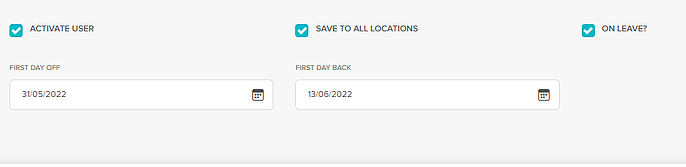
- At the bottom of the page, tick the on-leave box and select the date they return.
- Click on update user.
If no date is selected this user will be ‘on-leave’ until this process is manually reversed. Selecting a date will automatically take them off leave.
Was this article helpful?
That’s Great!
Thank you for your feedback
Sorry! We couldn't be helpful
Thank you for your feedback
Feedback sent
We appreciate your effort and will try to fix the article