Our Files & Links feature allows you to save all relevant documentation in one easy to navigate location. From here you can view all saved files & links, and share via a URL.
Document Types
Every item saved, must have it's "type" classified. Common documents types are;
- Quotes
- Service Agreements
- Service Reports
- Finishes Schedule
- Training Materials
Document types are added via the configuration tab.
From the configuration tab (left hand menu) select Document Type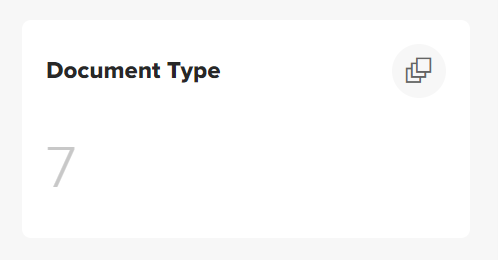
Located in the top right-hand corner of the screen, select Add New Document Type
Select an icon from the dropdown menu and enter the name of the document type. Select Save at the bottom of the screen
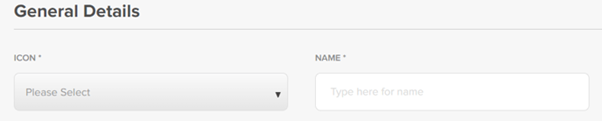
Document type will now be available as an option when creating documents
You can edit, archive / unarchive document types using the three dots to the right of document details

Permissions
Public Permissions - these files can be viewed by anyone who has been provided with the URL, without the need for a Ticked Off account
Private Permissions - these files can only be viewed by users who have a Ticked Off account. URL can still be sent
More information on sharing below
Autosave - WR Documents
Documents / files that are captured in a WR will be autosaved. These will be saved with their permissions set to private by default (can be changed to public via edit) and may include;
- Location Documents
- Supplier Documents / Reports
- Supplier Quotes
These will available via the Files & Links tab
Manually adding Files / Links
You can manually add Files / URLs via the Files & Links tab
Select Add New Document (top right hand corner of the screen)
Enter name and select relevant details from dropdown menus
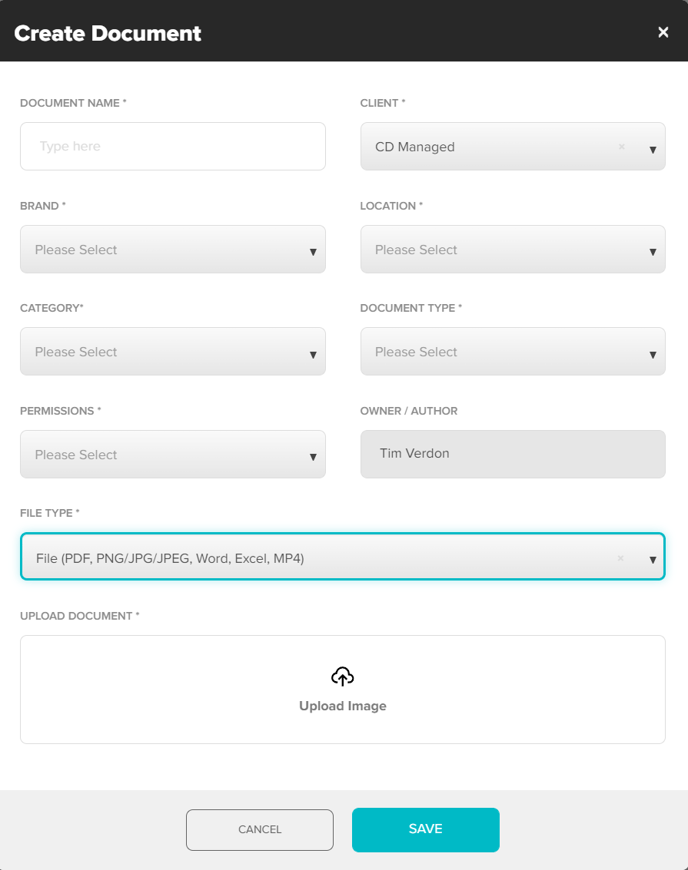
Select file type
- URL - Enter full URL (eg https://tickedoffapp.net/index.html#/request/list)
- File - Add file via drag and drop, or by clicking the upload box and selecting a file from your device
Select Save
Searching / Filtering Files & Links
From the Files & Links landing page, use the filters to narrow down the results displayed
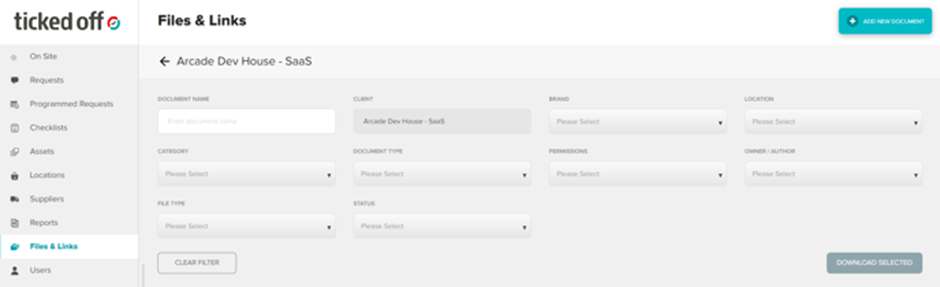
You can further sort by clicking the column titles

To view the general details of the file or link you can;
- double click anywhere in the row

Hover over the 3 dots to the right and click view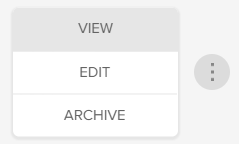
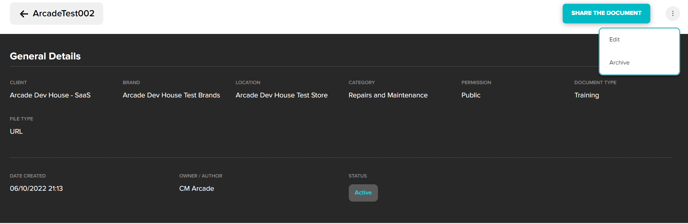
From the general details screen you can;
- View
- Share
- Edit
- Archive / Unarchive
Sharing Files & Links
Files and links can be shared via a URL. Recipients may require a Ticked Off account to view URL based off the documents permissions
Sharing a single item
From the Files and Links landing page, locate the item you wish to share and click View
Select Share The Document (top right hand corner of screen), URL will be copied to your clipboard
In your email, right click and select paste (or Ctrl v). Link will be pasted ready for you to share
Sharing multiple items
Using the tick boxes to the left, select the items you wish to share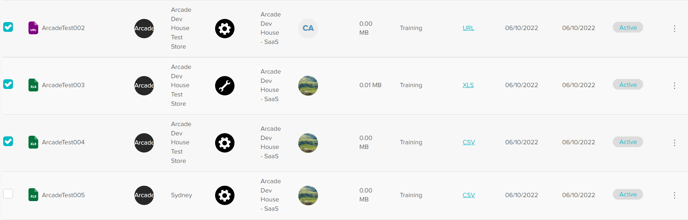
Once selections have been made select Download Selected. Items will be downloaded in a ZIP file to your device for you to share as you wish
Editing / Archiving / Unarchiving Files & Links
There are two locations you can edit / archive Files & Links
Files & Links landing page
Hover over the three dots and select required action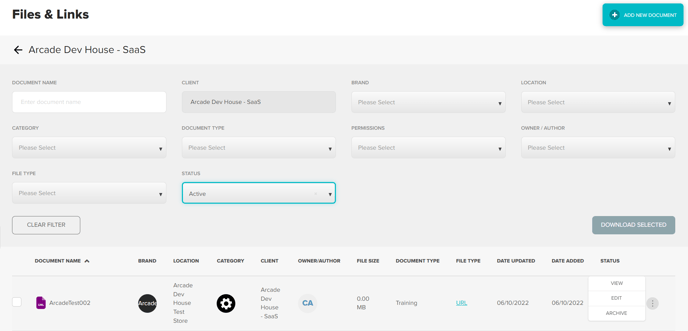
General Details page While in the view screen click the three dots in the top right hand corner and select required action
Was this article helpful?
That’s Great!
Thank you for your feedback
Sorry! We couldn't be helpful
Thank you for your feedback
Feedback sent
We appreciate your effort and will try to fix the article