Manually adding Files / Links
You can manually add Files / URLs via the Files & Links tab
Click the Add New Document button (top right hand corner of the screen)
Enter name and select relevant details from dropdown menus
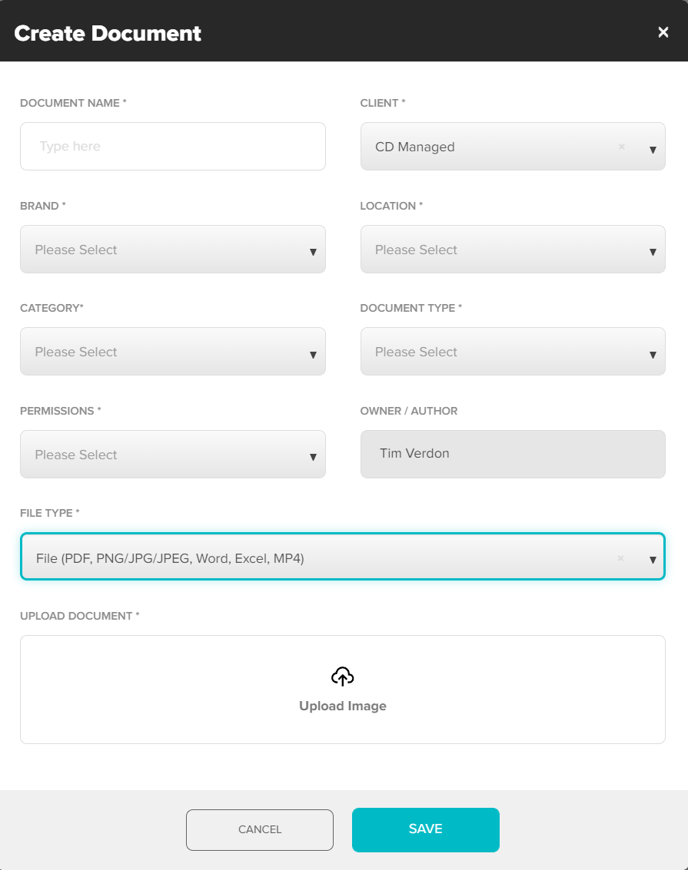
Select file type
- URL - Enter full URL (eg https://tickedoffapp.net/index.html#/request/list)
- File - Add file via drag and drop, or by clicking the upload box and selecting a file from your device
Click Save
Hint: try drag & drop!
Autosave - WR Documents
Documents / files that are captured in a WR will be autosaved. These will be saved with their permissions set to private by default (can be changed to public via edit) and may include;
- Location Photos
- Location Documents
- Supplier Photos
- Supplier Documents / Reports
- Supplier Quotes
- Supplier Invoices
These will available via the Files & Links tab
Was this article helpful?
That’s Great!
Thank you for your feedback
Sorry! We couldn't be helpful
Thank you for your feedback
Feedback sent
We appreciate your effort and will try to fix the article