With our improved asset functionality, we've made it easy to create an Assets list/ register to manage all company assets.
Assigning assets is a great way to assign items that don't need a fixed location such as laptops, keys, devices etc.
You can now assign an asset to either a person or location (doesn't need to be both).
You can filter and search assets in multiple ways.
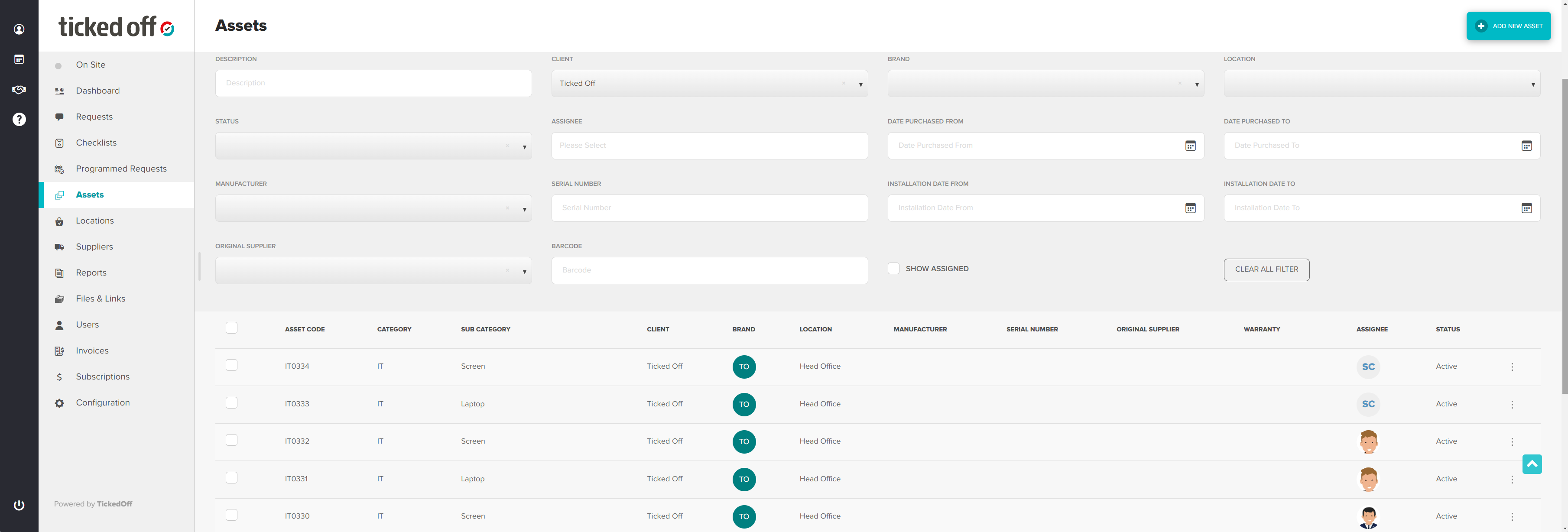
Filter by Client
Enter or search for the Client name in the 'Client' field.
This will bring up a list of all Assets under a specific client name.
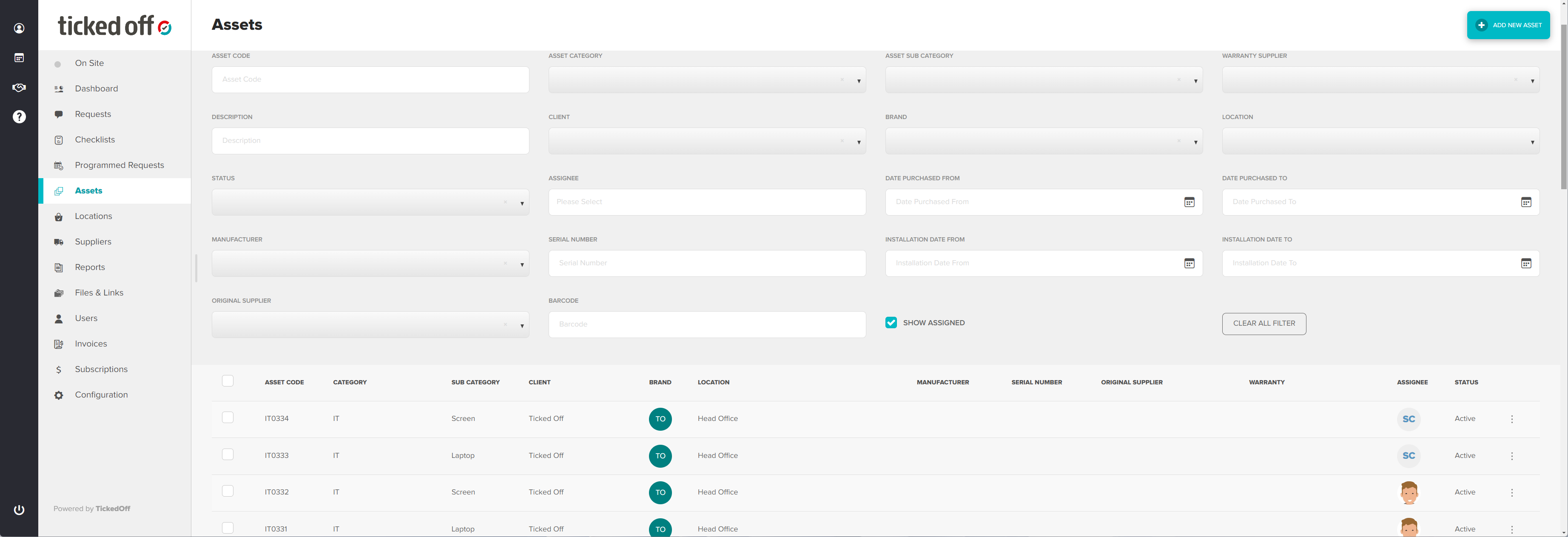
Show Assigned tick box
Using this tick box will generate a list of and will only show Assets that are currently assigned to users on Ticked Off.
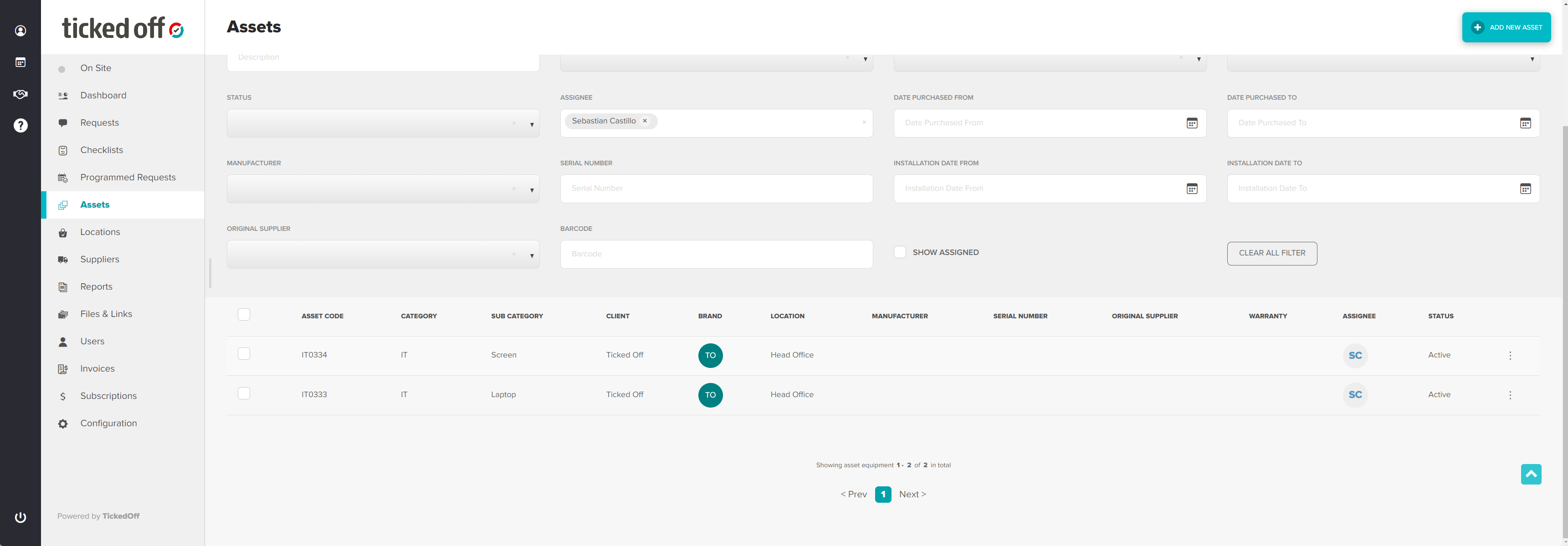
Filter by Assignee
You can search for an asset by user/assignee which is useful when people are offboarding to see which assets have or haven't been returned.
Simply filter by the 'Assignee' field, by typing or searching for a name from the dropdown list.
Was this article helpful?
That’s Great!
Thank you for your feedback
Sorry! We couldn't be helpful
Thank you for your feedback
Feedback sent
We appreciate your effort and will try to fix the article