Asset management is a powerful feature within Ticked Off that allows you to easily log, track and manage your company assets, such as appliances, fixed and mobile equipment, and more. Attach warranties, proof of purchase and other key documents to your Asset file, and you can easily access and share the important information when it comes time for servicing or repairs.
Asset QR codes go a step further in simplifying the process of raising a Work Request related to a specific Asset. Scanning the code will open a new Work Request, with all existing Asset data pre-filled. Even non Ticked Off users are able to report broken or damaged Assets with this feature - meaning potential hazards and issues are flagged as soon as possible.
To create an Asset, head to the Assets tab in the web platform, and click "Add New Asset" teal action button on the top right of the screen.
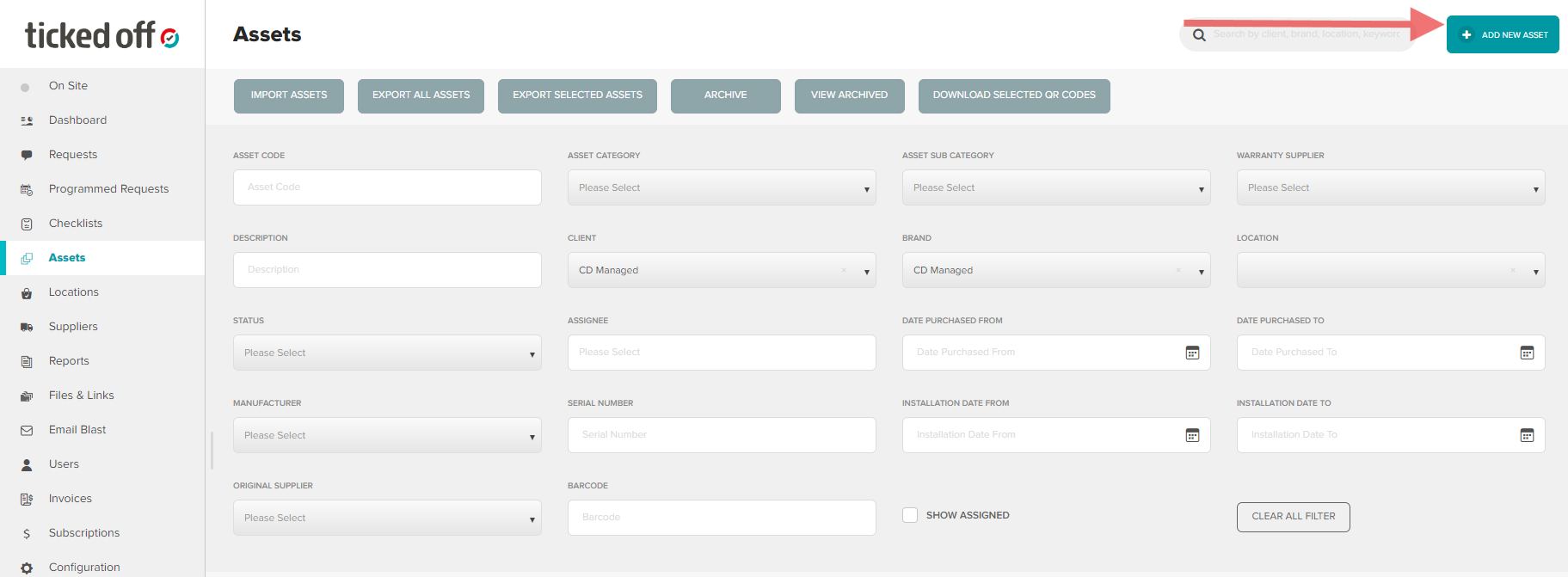
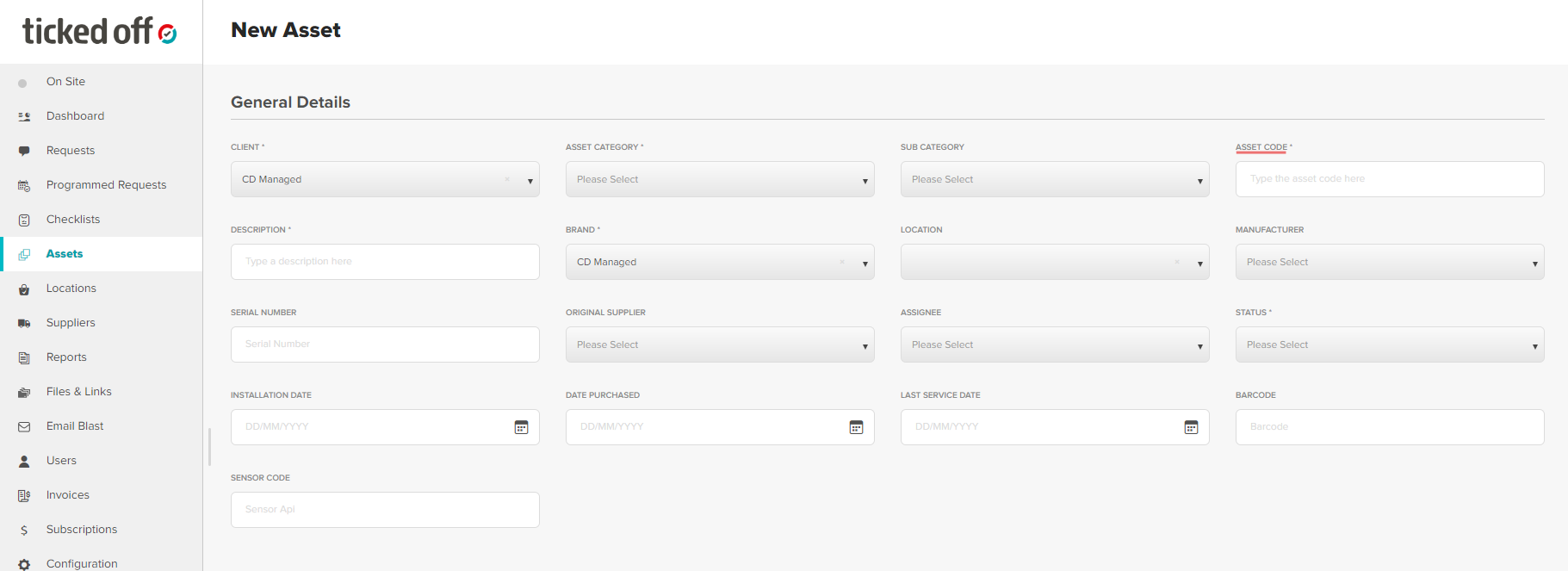
On the next screen, you can add all the relevant details for the Asset. You'll notice the "Asset Code" generates automatically for you - you can keep this code or assign your own, as long as it is unique within your Assets register.
Here you can specify Manufacturer, Original Supplier, and assign a User
Next, attach Warranty information, any other supporting documents, and include details of any service agreements
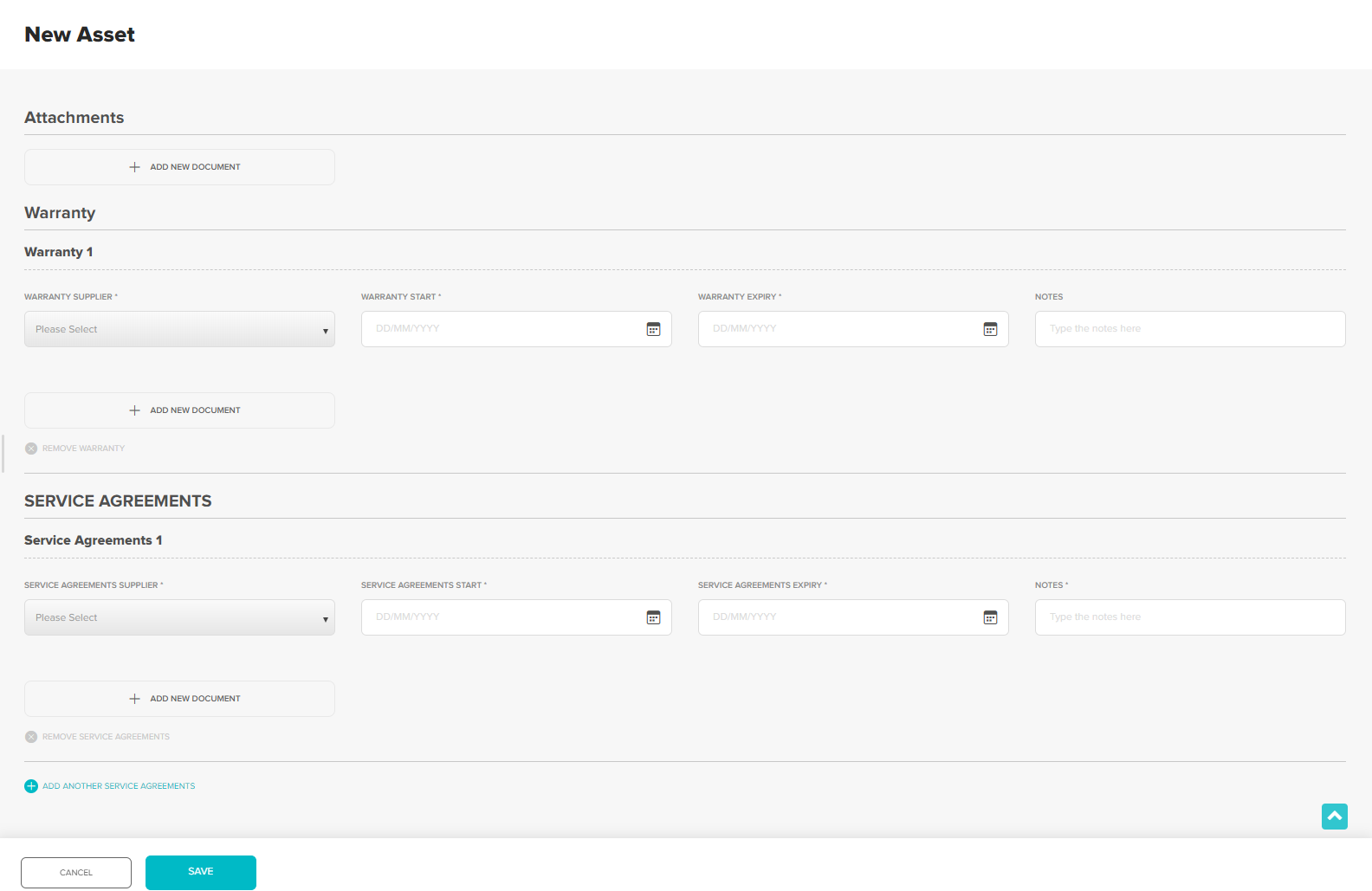
Save the Asset, and you're done! To create barcodes or QR stickers for your Assets, reach out to us at support@tickedoff.app
Importing Assets Via CSV
If you have multiple assets to add, you also have the option on the main Assets screen to select "Import Assets" - this will allow you to import them all at once using a CSV file.
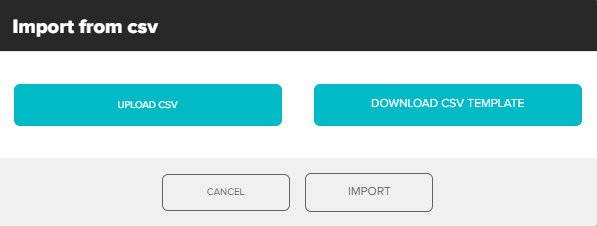
Here's how:
- On the main Assets screen, click on "Import Assets" (top of page).
- Click "Download CSV Template" to access template
- Populate CSV Template with relevant Asset data. Save to computer
- Via the Import popup, click "Upload CSV" and select saved file.
- Click "Import".
The system will then validate your data.
If there are errors, they will be highlighted for correction.
Understand the CSV Fields
The CSV template includes the following fields:
Asset_Code: Unique identifier for the asset. Leave field empty to have the system generate a unique code.
Asset_Category/Asset_Sub_Category: required Classify your assets for better organisation. Must match WR categorsies.
Client: required Your Ticked Off client name.
Brand: required The brand of the asset.
Location: required* Physical location details.
Sub_Location/Sub_Sub_Location: Secondary location information
Manufacturer: Who made the asset.
Serial_Number: Asset's serial number.
Original_Supplier: Where the asset was purchased.
Status: required Current status (e.g., Active, Inactive).
Installation_Date/Date_Purchased/Last_Service_Date: Use YYYY-MM-DD format.
Description: (required) Additional details about the asset.
Barcode: If applicable.
Assignee: required* User responsible for the asset.
Warranty and Service Agreements: Supplier details, start and expiry dates, and notes.
*An asset must have either a location or Assignee assigned (or both).
Tips:
Ensure the Asset_Code is unique for each asset.
Dates should be in YYYY-MM-DD format.
Leave any non-applicable fields blank.
Was this article helpful?
That’s Great!
Thank you for your feedback
Sorry! We couldn't be helpful
Thank you for your feedback
Feedback sent
We appreciate your effort and will try to fix the article