Requests can now be designated as "Internal Requests", meaning someone from within your business will complete rather than an external supplier/contractor.
The Internal Request Workflow consists of the following status,
- Open
- Request has been moved to internal workflow but no user has taken action
- In Progress
- User has acknowledged request
- Done
- User has marked request as complete
Do it Ourselves
WEB
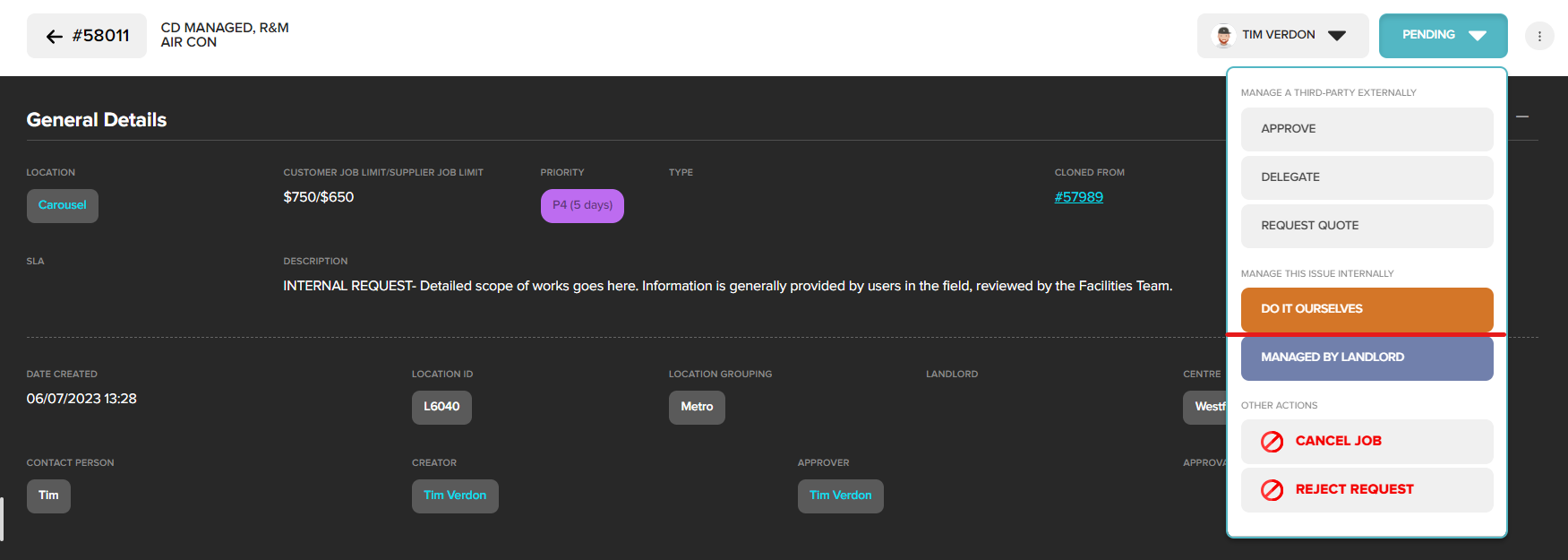
To mark a request as Internal, we use the Do it Ourselves function via the action bar.
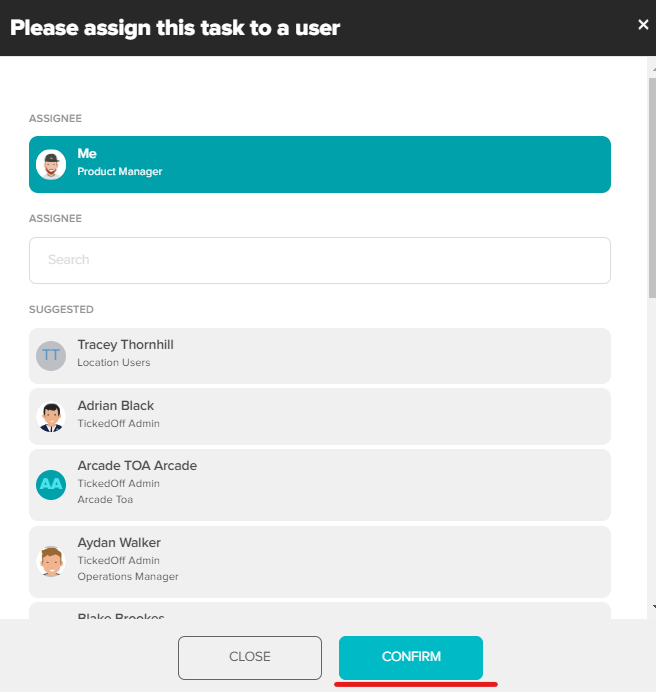
Via the pop up box, assign the user who is responsible for completing this request (you can assign to yourself). Click Confirm to select.
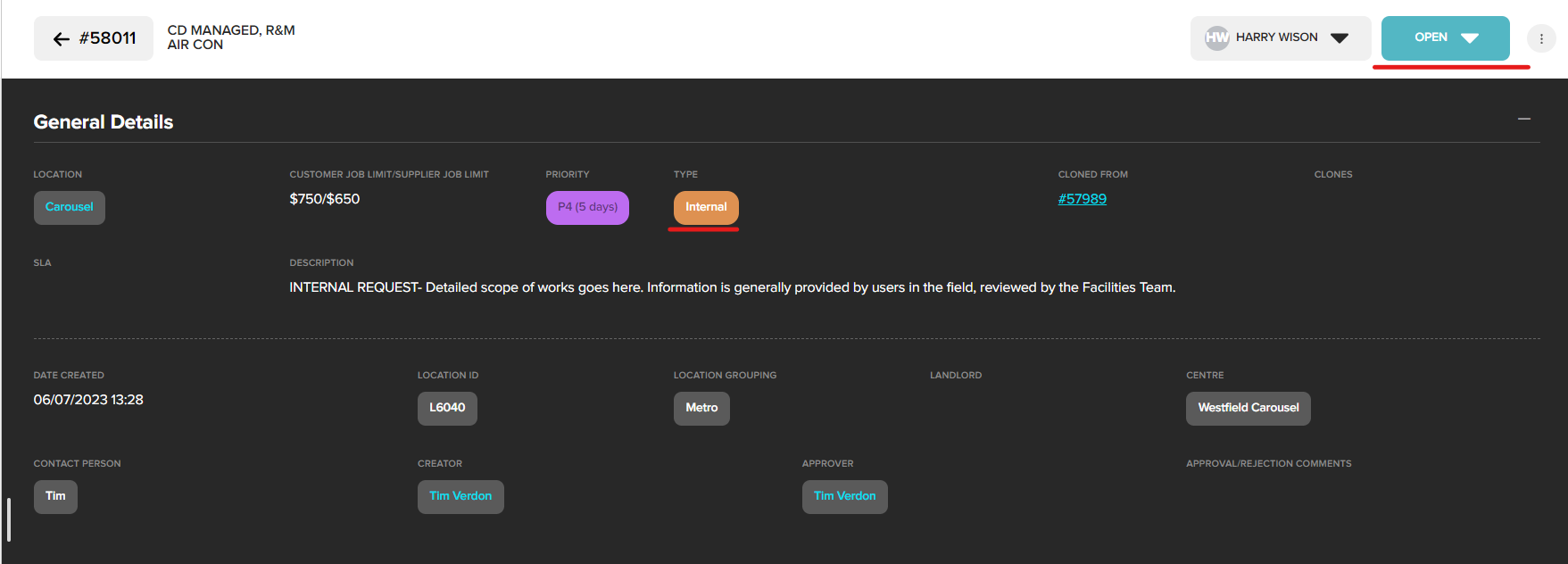
Once “Do It Ourselves” has been selected, the request type will change to Internal, and the status to OPEN.
APP
From the Action Bar, select Do It Ourselves.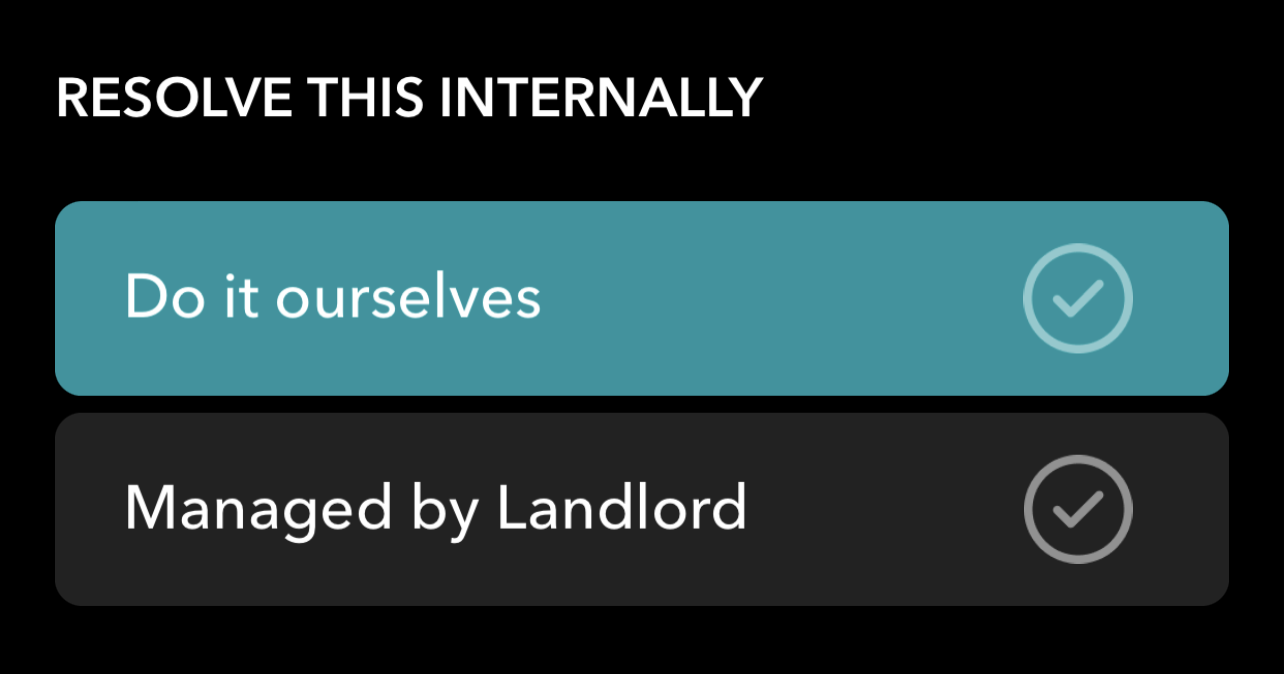
Assign the user who is responsible for completing this request (you can assign to yourself).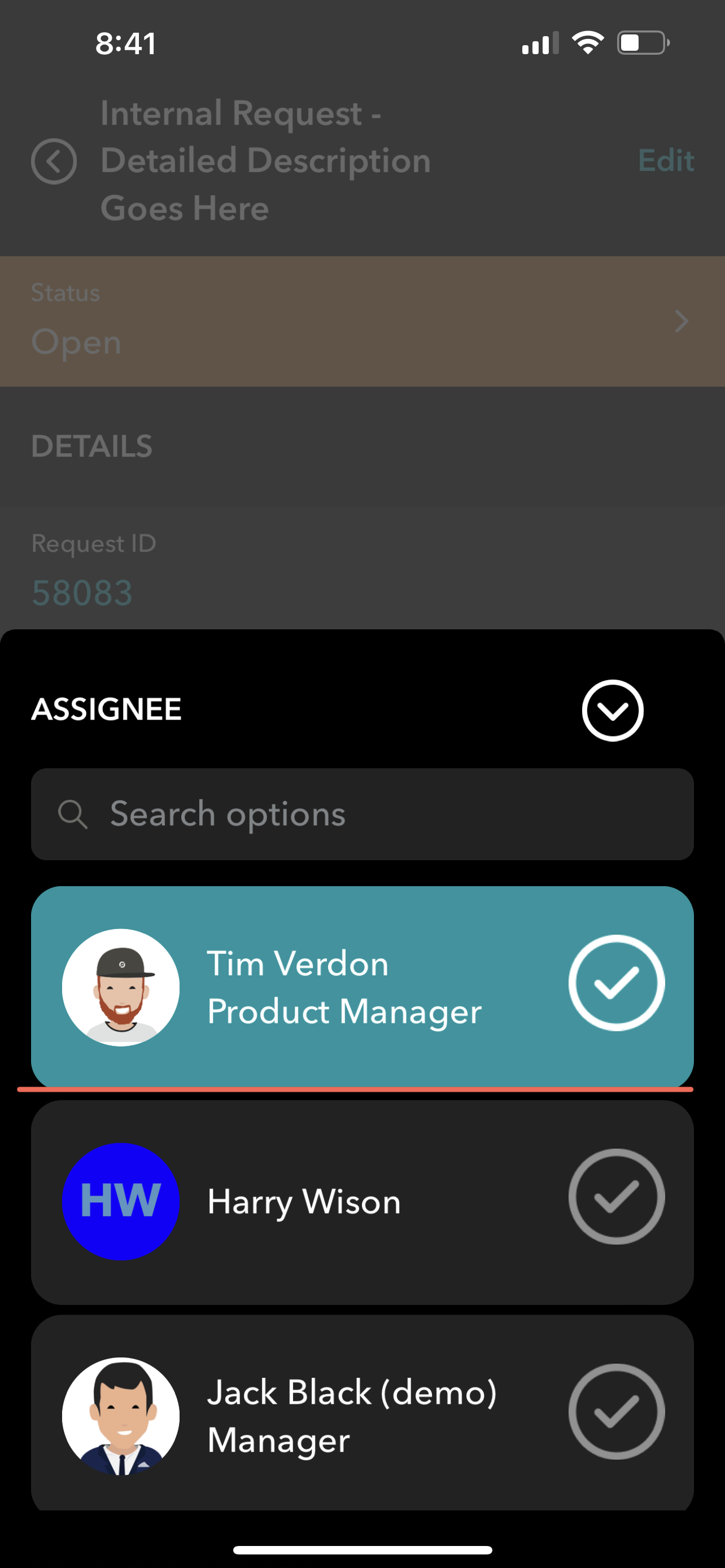
Once “Do It Ourselves” has been selected, the request type will change to Internal, and the status to OPEN.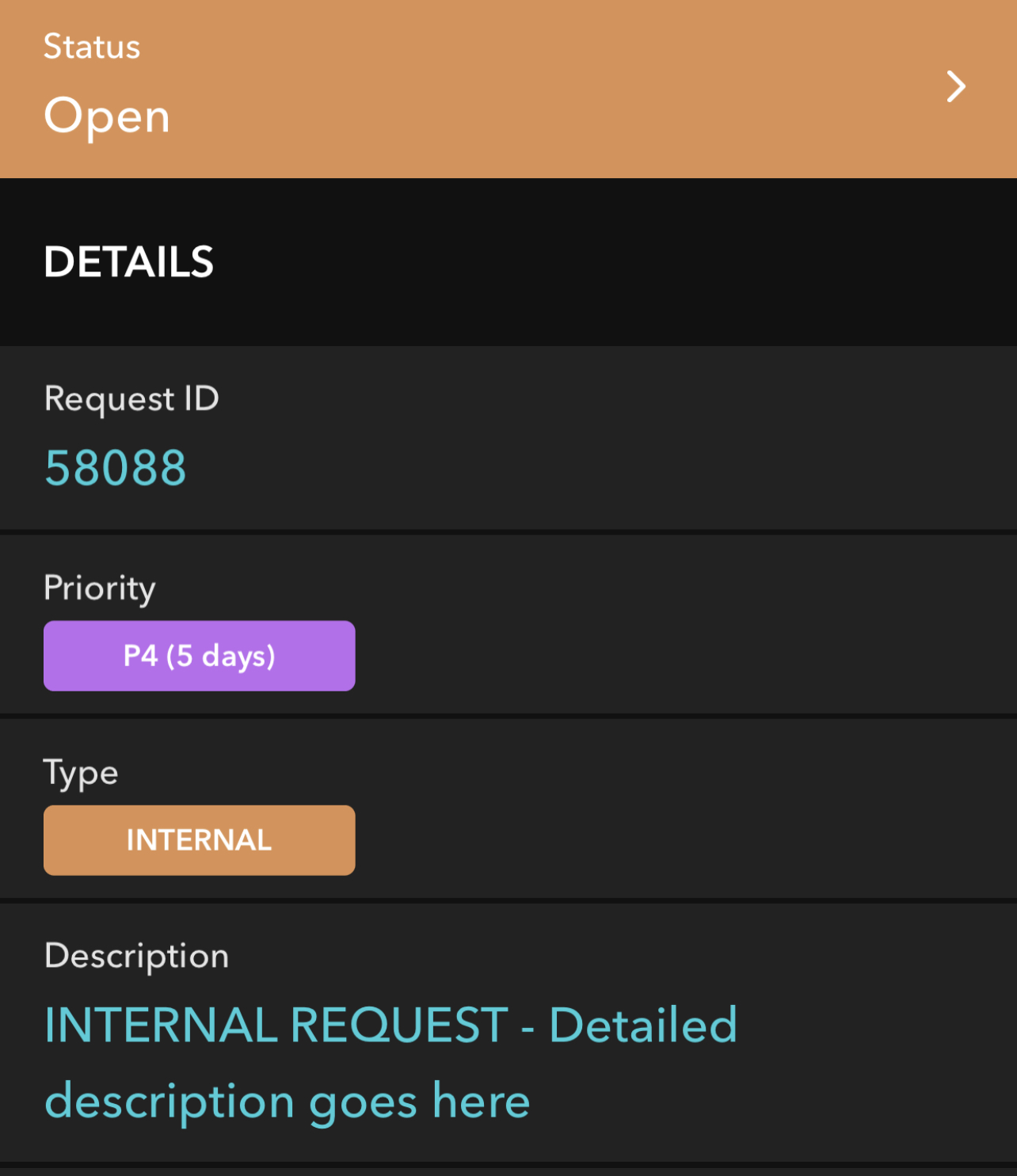
Reassigning Users
WEB
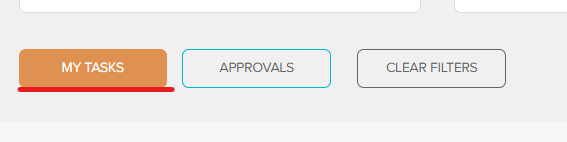
You can reassign requests to another user by clicking on the current assignees name. Search / select the new assignee. Click Confirm. User will be notified via email and push notification that a request has been assigned for them. Assigned request will be listed in this users “My Tasks” tab.
APP
To reassign via the app, click edit and scroll down to the assignee section.
Acknowledge / Close an Internal Request
WEB
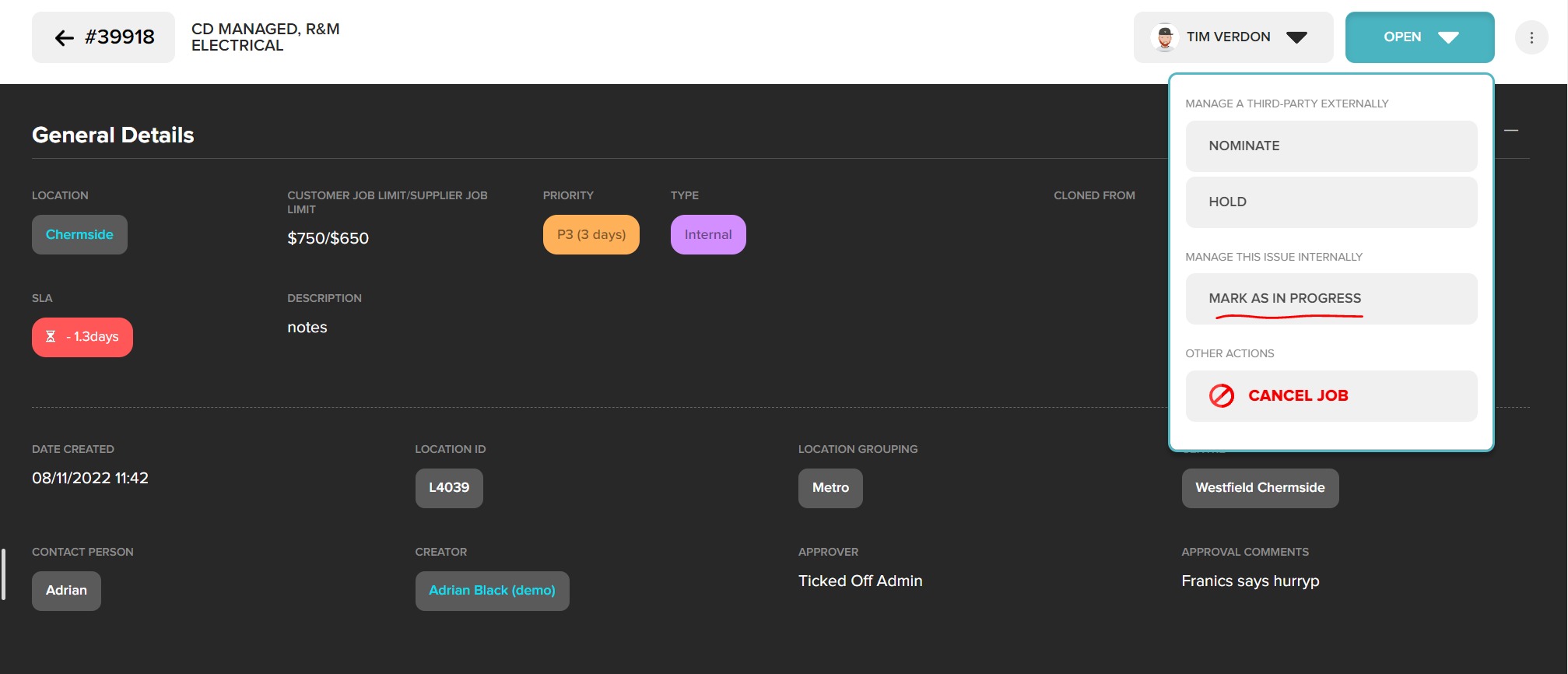
When an internal request has been assigned, it is important that the assigned user marks this as In Progress. Completing this action will notify applicable users that request is being actioned.
From the action bar click “Mark As In Progress”. This will change the status of the request to IN PROGRESS.
When the task is complete users can mark the request as Done via the action button.
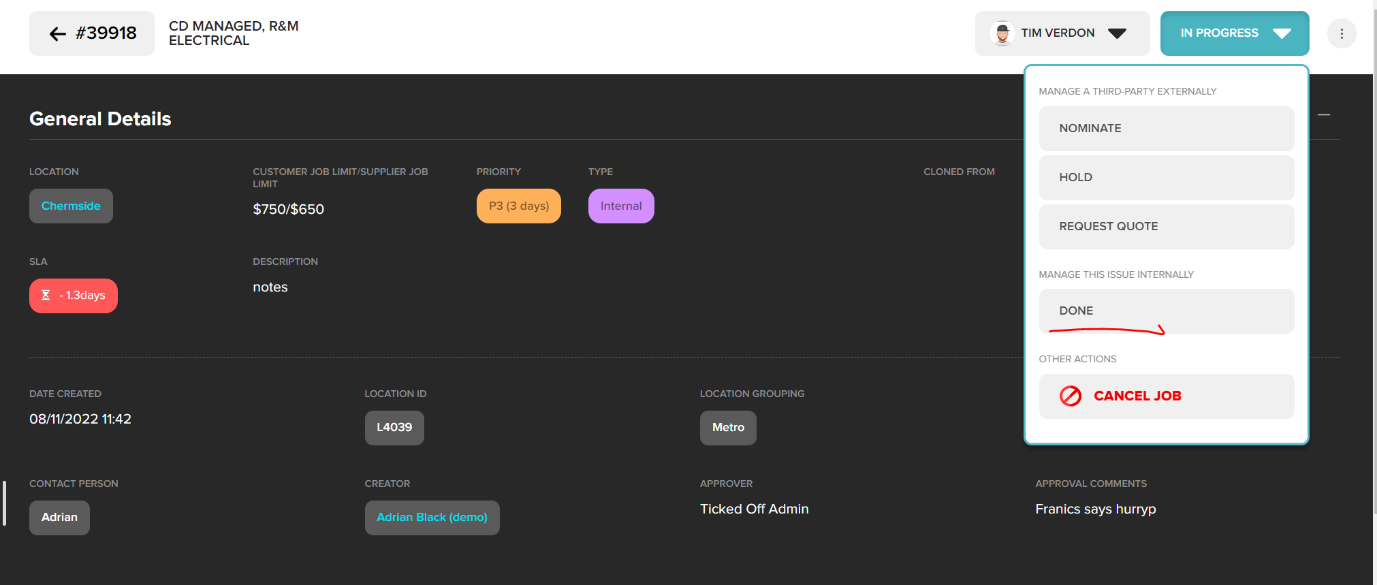
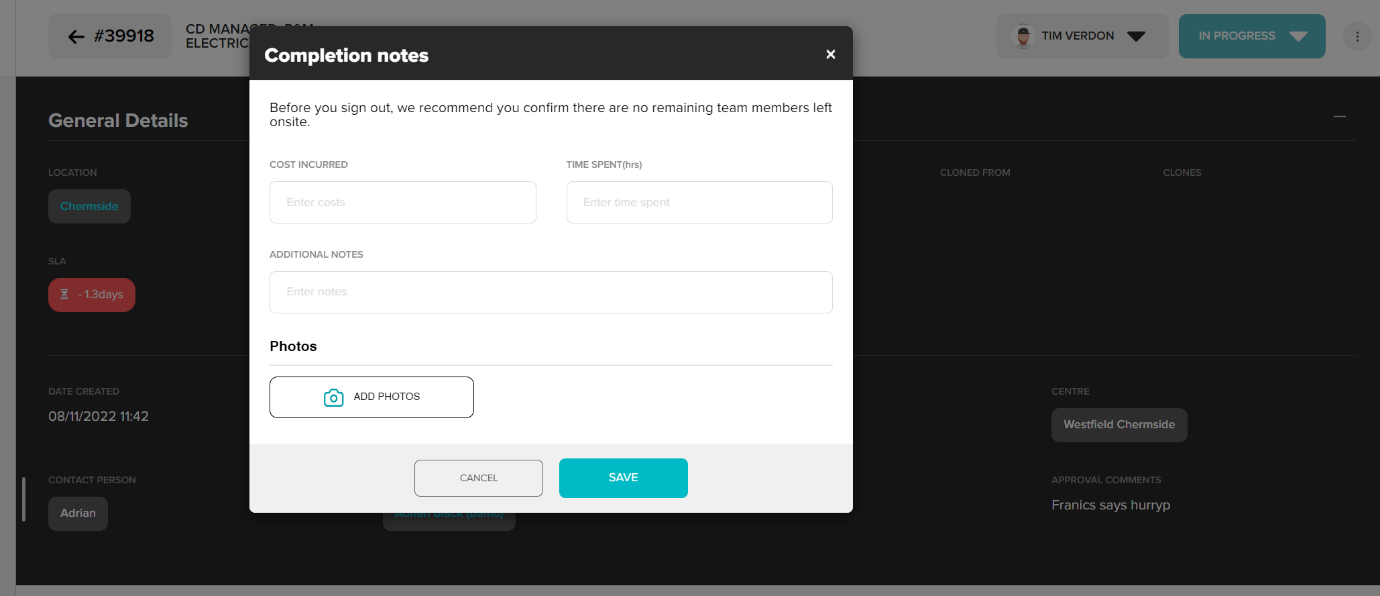
There is now the opportunity to capture the following information (not mandatory)
- Cost
- Time Spent
- Additional notes
- Photos
APP
From the action bar click “Mark As In Progress”.

This will change the status of the request to IN PROGRESS.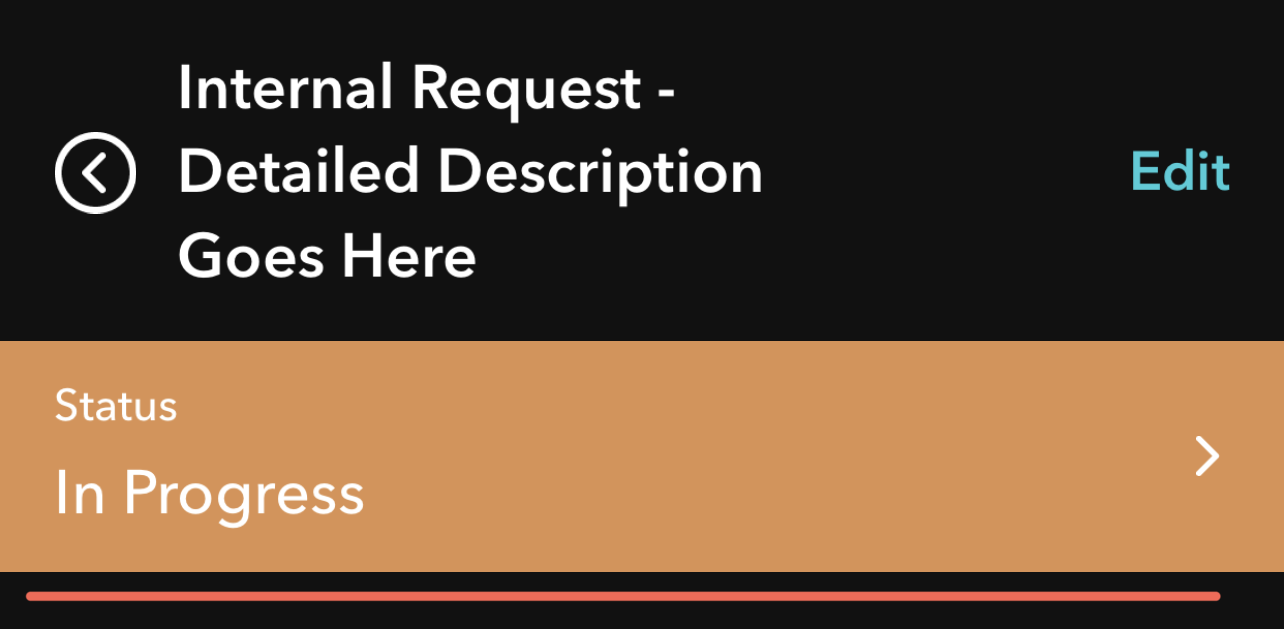
When the task is complete users can mark the request as Done via the action button.
There is now the opportunity to capture the following information (not mandatory)
- Cost
- Time Spent
- Additional notes
- Photos
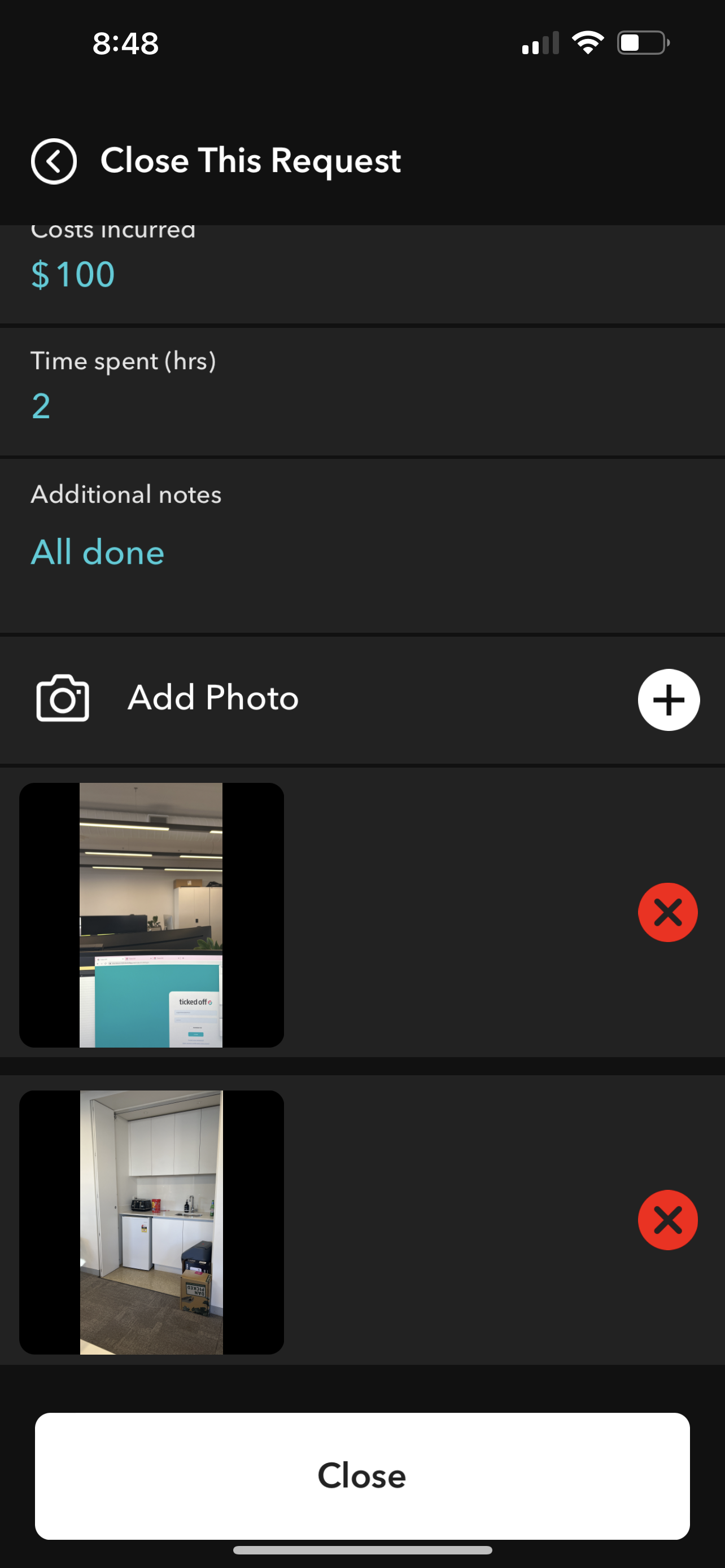
Once closed, the request status will change to CLOSED. All Information captured can be viewed in the request.
Information captured in internal requests is included in CSV reporting.
Was this article helpful?
That’s Great!
Thank you for your feedback
Sorry! We couldn't be helpful
Thank you for your feedback
Feedback sent
We appreciate your effort and will try to fix the article