Once your Quote is ready to submit, Select "Add Quote" from the teal action menu and the pop-up that follows.
You'll then be able to enter all the relevant details for your quote, including any
- Photos
- Supporting documents
- Quote expiry date, ID and description
Be sure to include the Quote total as a line item separately to your document.
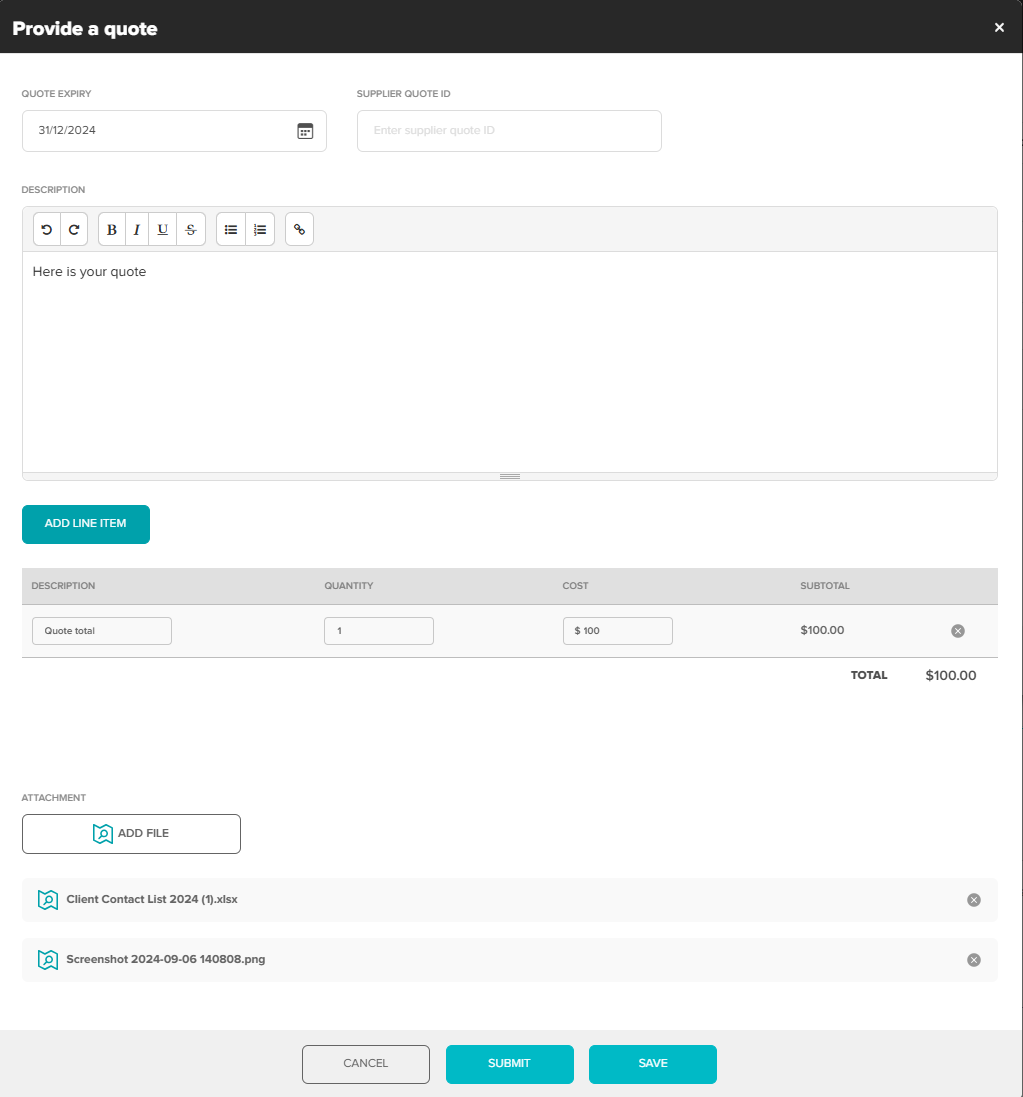
Select "Save" to come back and edit the Quote later
Select "Submit" to send the Quote to the Client for their approval.
You will receive an email notification with the Clients decision - Approved, Rejected, or they may request an additional Quote.
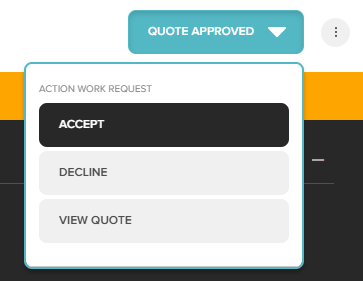
If your Quote is approved, be sure to accept and advise of your ETA to complete the work.
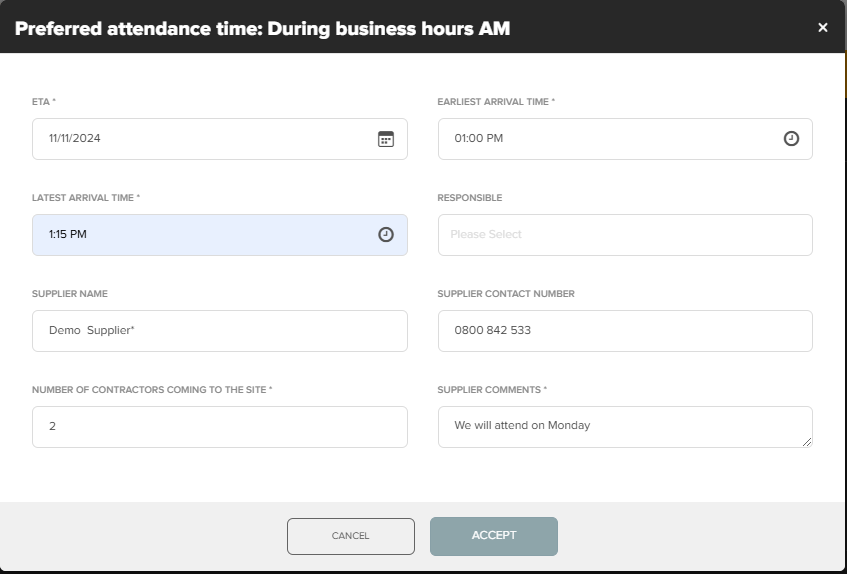
Head back to the Work Request to "Accept" the confirmed job and provide details
Enter your ETA, as you would when accepting a regular Work Request.
When providing a quote document to Ticked Off, please ensure the following is included:
- Brand name of Client (not Ticked Off) and address
- A detailed description of the works including material specification, parts, finishes etc
- A quote number for reference. If changes are requested to a submitted quote, please use a different number for the revision, either a different number or a version. Ie. original quote number 98765, revised quote number 98765B
- Clarification on time of day the works are quoted to be actioned (during business hours etc) and the duration required (works commencing at 6pm, 4 hours access required)
Don't forget to Sign in to Site when you attend the job!
Was this article helpful?
That’s Great!
Thank you for your feedback
Sorry! We couldn't be helpful
Thank you for your feedback
Feedback sent
We appreciate your effort and will try to fix the article