Please see the quick steps below on how to locate Checklists in the Ticked Off config area.
Below are the instructions on how to build out and create your very own Checklist to be used by staff for scenarios such as compliance, OH&S, inventory, safety checks etc.
Please note: Checklist templates can only be created and edited by a Super Admin user.
Step 1) New Checklist Form page
i) Start by giving the Checklist a name
ii) Next, select a Category and Sub category for the Checklist
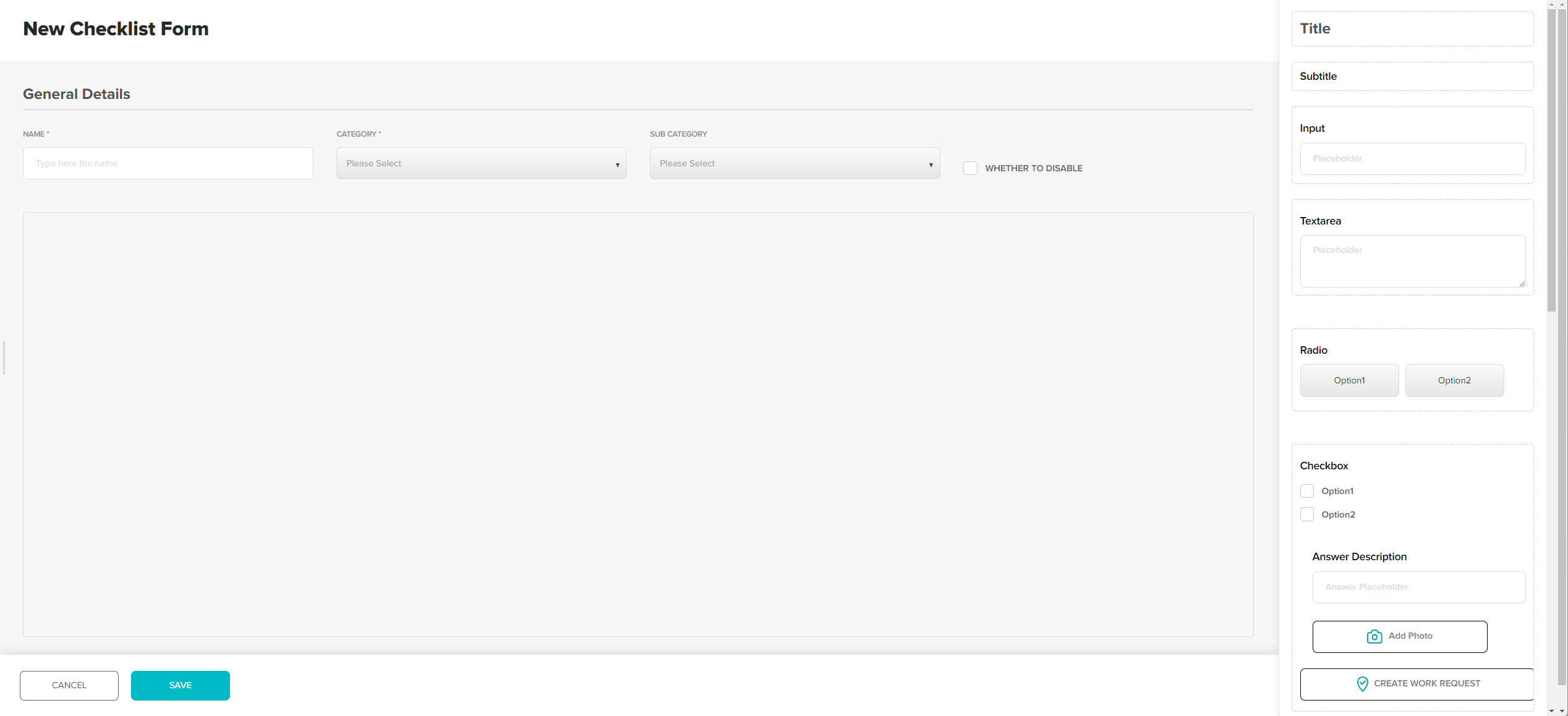
Step 2) This is where you will use templates to start building your checklist.
Using the templates on the right panel, start dragging them over to the left hand side.
The left hand side will be your workspace/ where you make edits.
Simply drag and drop the template you wish to use from the right side over to the left side by holding down your mouse and dragging over with your mouse.
Template legend: Each template will be have a dotted border (12 templates in total)
Title: Will be visible to the user completing it. You can use the title to break up certain sections e.g a heading for different sections (front of house, back of house).
Sub title: Used for adding URL's.
Input: Text field. Ability for the user to enter text e.g description, a name, location, colour etc.
Textarea: Similar to the above except textarea expands as you type. The text field is for longer answers.
Radio: Radio button, to be used for when you only need one answer e.g Yes or No.
Checkbox option 1 &2: To be used when you wish to employ closed questions.
Use this template, when more than 1 item needs to be confirmed.
Confirming multiple things happened.
Checkbox only (without photo and work request option):
Date field template: This template is useful as a date selector, to show when a task was completed or checked.
Add Photo: Field used for adding photos to the checklist.
Signature pad: This template is to provide and include a signature for sign offs and to verify completion etc.
Question: This template includes a question and answer description as well as the option to add a photo and a work request.
Add file: This template is if you simply wish to add any additional files.
Was this article helpful?
That’s Great!
Thank you for your feedback
Sorry! We couldn't be helpful
Thank you for your feedback
Feedback sent
We appreciate your effort and will try to fix the article