Checklists are a handy tool that can be customised and used across a range of purposes. From simple one off forms, to capturing complex data, you are able to build a Checklist to your own specifications. Incident registers, store safety audits, stocktakes, and client registration are just some of the ways we have seen Ticked Off clients make use of this feature.
To create your own checklist, head to the Configuration tab in the Ticked Off platform and select Checklists. You’ll see “Add New Checklists Form” on the teal action button in the top right corner of the page.
Enter your checklist name, category and sub-category (if applicable). Use the menu on the right to drag and drop sections into the blank space on the left to build your checklist.
Title and subtitle will appear on the form for other users - these are generally used to provide context and help to structure your checklist.
Choose a free-text question box:
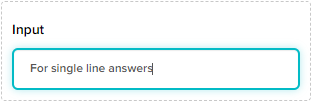
Or:
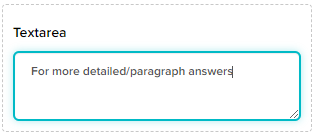
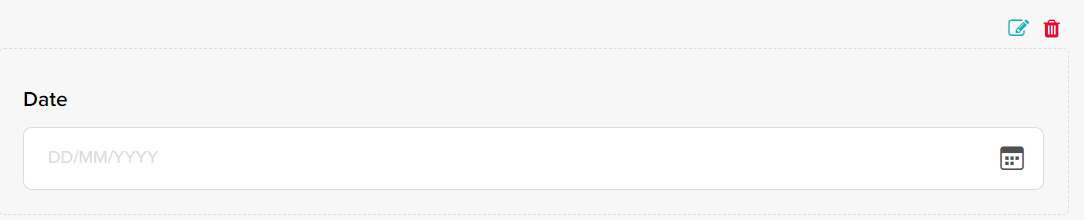
Once your sections have been added, you will see a teal edit icon and a red delete icon on each box:
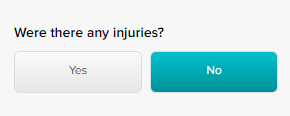
“Checkbox” will allow for multiple choice answers:
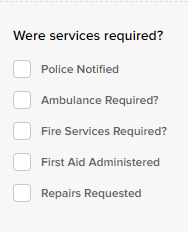
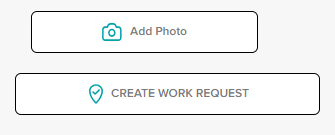
You will notice there are two “Radio” and “Checkbox” types - one with the question only, and another that includes the option for users to add photos, or create a Ticked Off work request via the form!
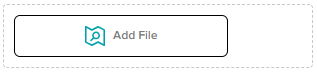
Or, select the stand-alone “Add File” box:
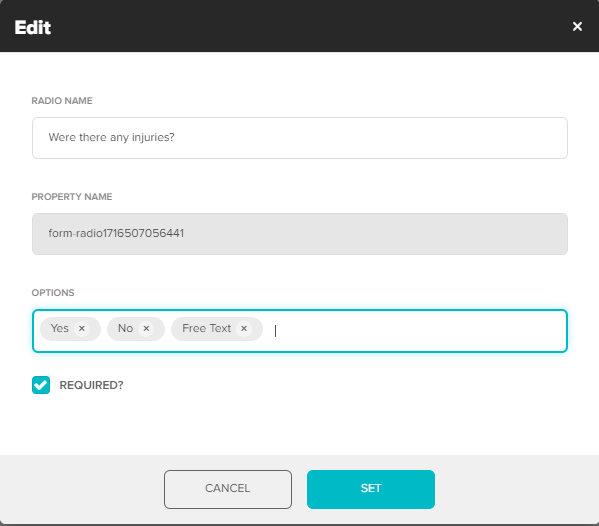
When editing these boxes, the answer “Options” are free text - you can type anything here, and hit “Enter” to create custom answer buttons.
*Note you can also designate “Required” responses here.
Finally, add a signature pad to allow users with a touch screen to sign on completion.
Once you’re happy with your Checklist, hit save! You’ll now be able to access the saved template under the Checklists tab - completed (or partially completed) Checklists are stored here. To start a new form submission, click “New Checklist” on the top right action button.
You can also access & complete Checklists via the app.
Note - access to checklists is subject to user permissions - get in touch if you have any questions around this.
Was this article helpful?
That’s Great!
Thank you for your feedback
Sorry! We couldn't be helpful
Thank you for your feedback
Feedback sent
We appreciate your effort and will try to fix the article