Not all fields are mandatory when attending requests. Here is a quick guide on speeding up the attend process. Skipped items may still be provided during the Supplier Review status.
1. Via the action button, click "ATTEND"

2. The star review is optional. Leave it blank and scroll past it to skip.

3. Supplier Reports are optional and can also be added during the Supplier Review process.


4. Select the date of attendance and click "NEXT" to continue.
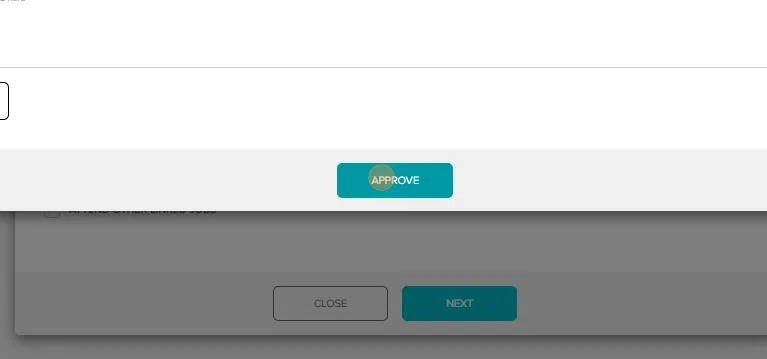
5. Items (cost), Reports and Invoices are all optional, simply leave blank and click "APPROVE". This will move the request into the Supplier Review status.
Was this article helpful?
That’s Great!
Thank you for your feedback
Sorry! We couldn't be helpful
Thank you for your feedback
Feedback sent
We appreciate your effort and will try to fix the article