Overview
Use the Control Centre to monitor workload, act on overdues, and apply quick filters.
Panels included:
Overdues
On Track
Total Active
SLA Met
High Priority Requests
Requests Completed
Toggle between views
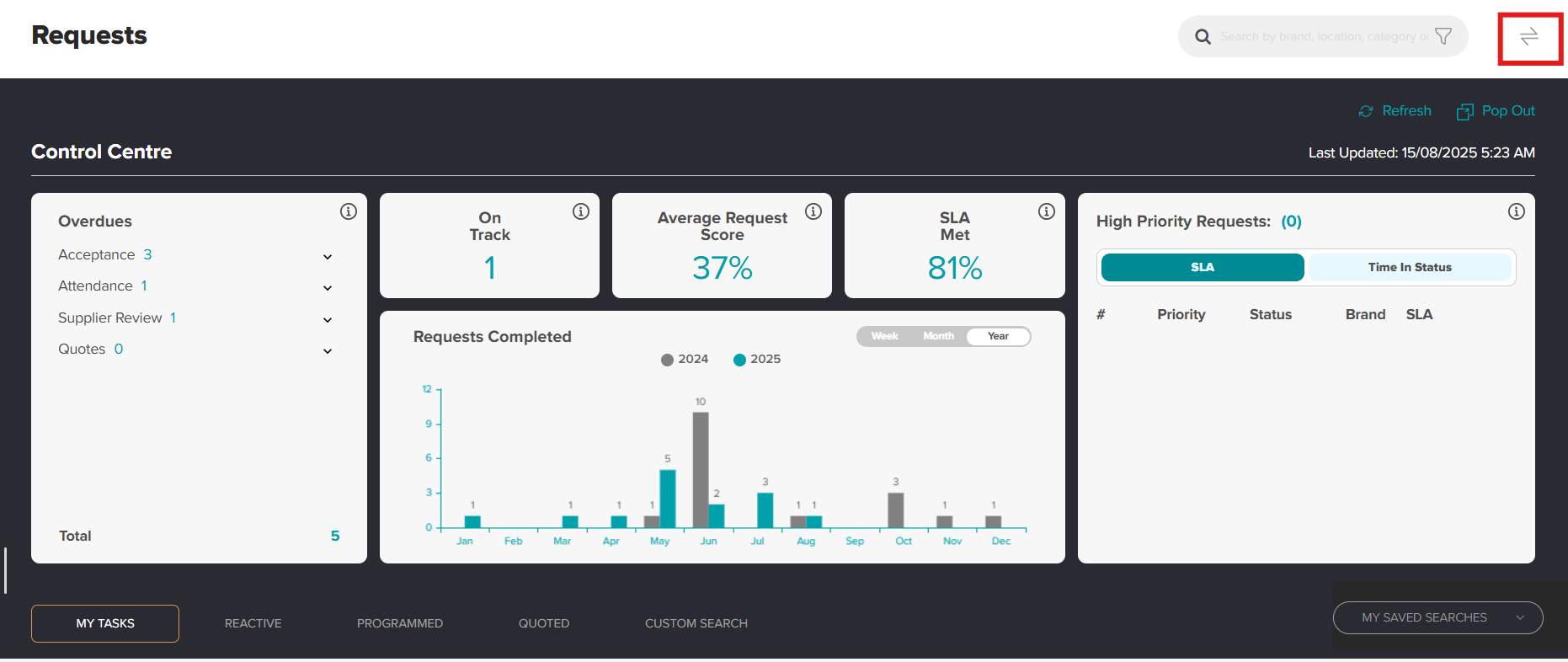
Select the toggle icon in the top right to switch between the standard list and the Control Centre.
Panels
Overdues: Counts for Acceptance, Attendance, Supplier Review, and Quotes. Expand to see sub-states.
On Track: Requests not currently flagged as overdue.
Total Active: Includes all requests except those in the cancelled, rejected or archived statuses.
SLA Met: Percentage of Reactive, Programmed, and Quoted requests this calendar year that met SLA, or have a valid OOSLA reason.
Requests Completed: Bar chart by Week, Month, or Year, with year-on-year comparison.
High Priority Requests: Active P1 and P2. Toggle between SLA and Time In Status.
Quick action filter buttons
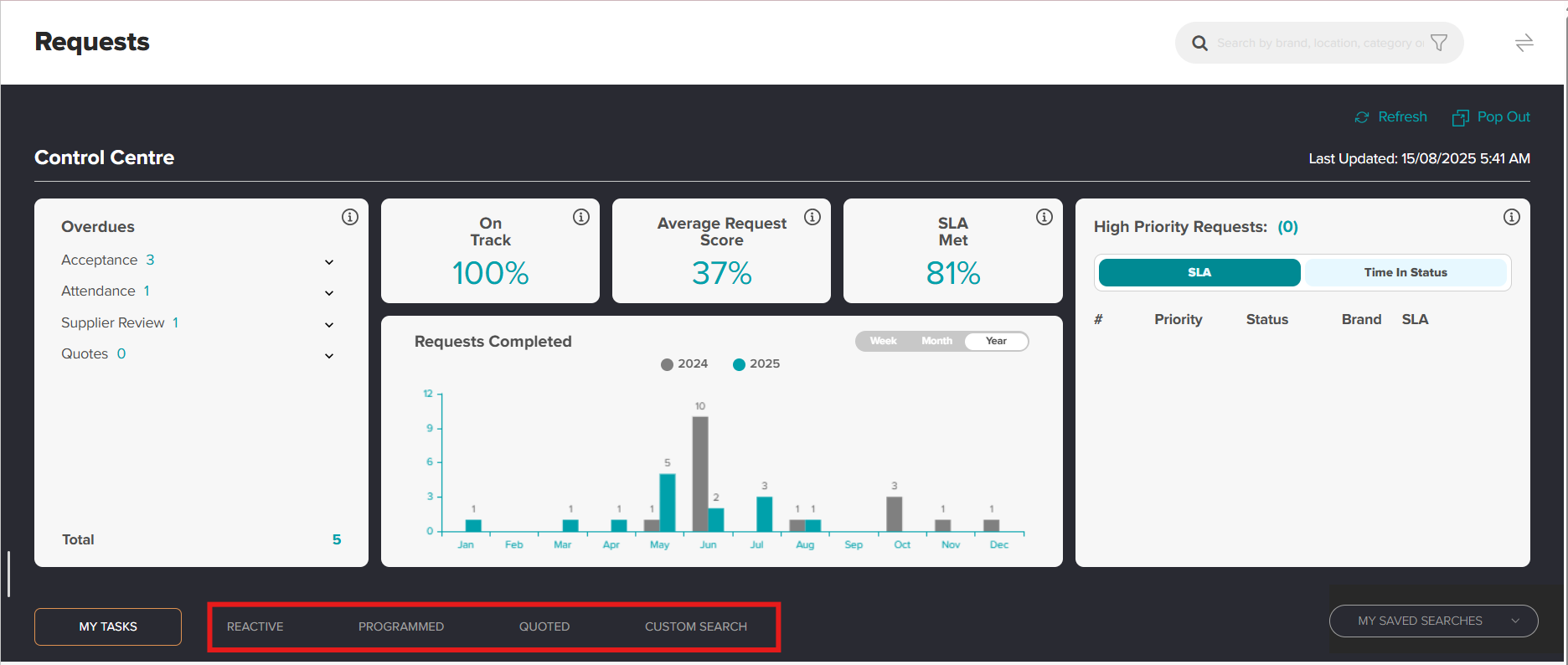
Buttons sit under the Control Centre. They load common views fast. Includes: Reactive, Programmed, Quoted, request type filters.
Clicking the request type will load applicable requests under the control panel.
Filters moved to the search bar
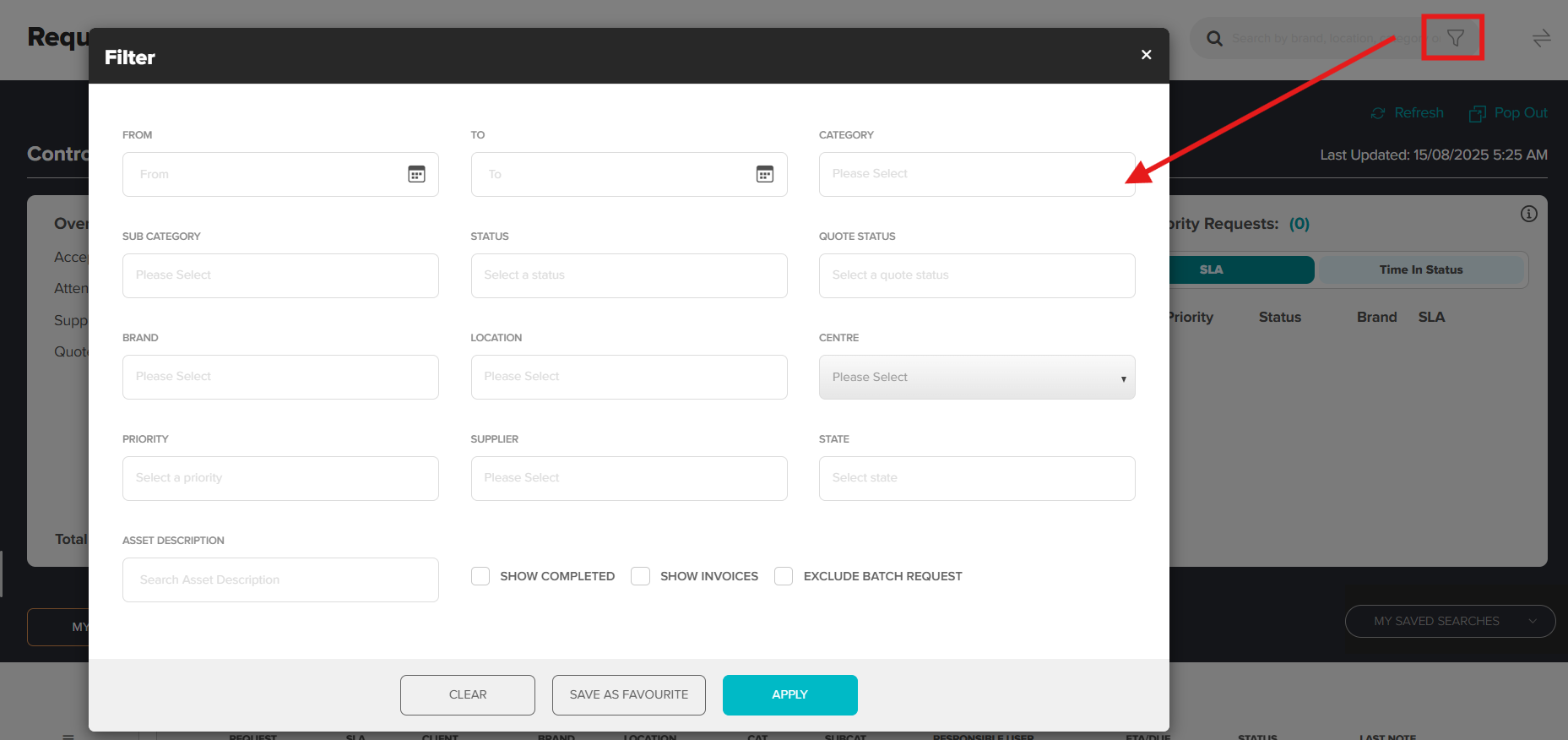
Open filters from the search bar using the filter icon..
Use Show Completed to include closed requests.
Use Show Invoices to surface invoiced items.
Save frequent searches as Favourite to reuse through My Saved Searches.
Tips
Select tiles and counts to apply a quick filter to the list below.
Select Refresh to update tiles before acting.
Was this article helpful?
That’s Great!
Thank you for your feedback
Sorry! We couldn't be helpful
Thank you for your feedback
Feedback sent
We appreciate your effort and will try to fix the article